Mac Accessories
Best Mice for Mac Users: Five Practical Alternatives to the Magic Mouse
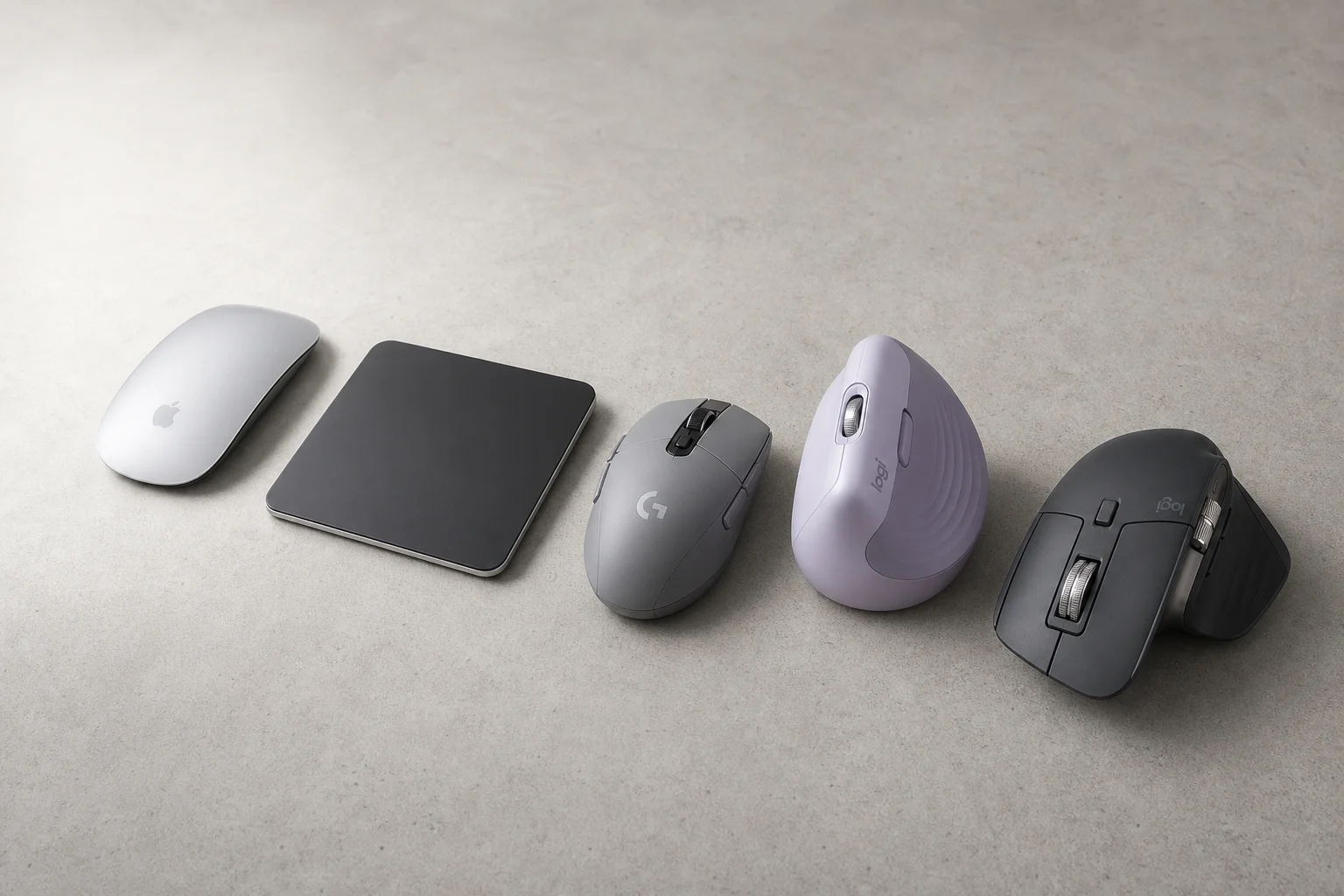
The Magic Mouse remains divisive. Here are five alternatives, from budget gaming mice to premium productivity options, each with clear strengths and trade-offs.
Introduction
The Apple Magic Mouse has been the default choice for Mac users since 2011, yet it remains one of the most polarizing peripherals in computing. Its flat design, lack of ergonomic support, and infamous bottom-mounted charging port frustrate many users. However, for those who find the Magic Mouse uncomfortable or simply want to explore other options, several strong alternatives exist. Each brings different strengths: trackpad familiarity, gaming-grade precision, ergonomic innovation, or productivity-focused features.
Why the Magic Mouse Still Works for Some Users
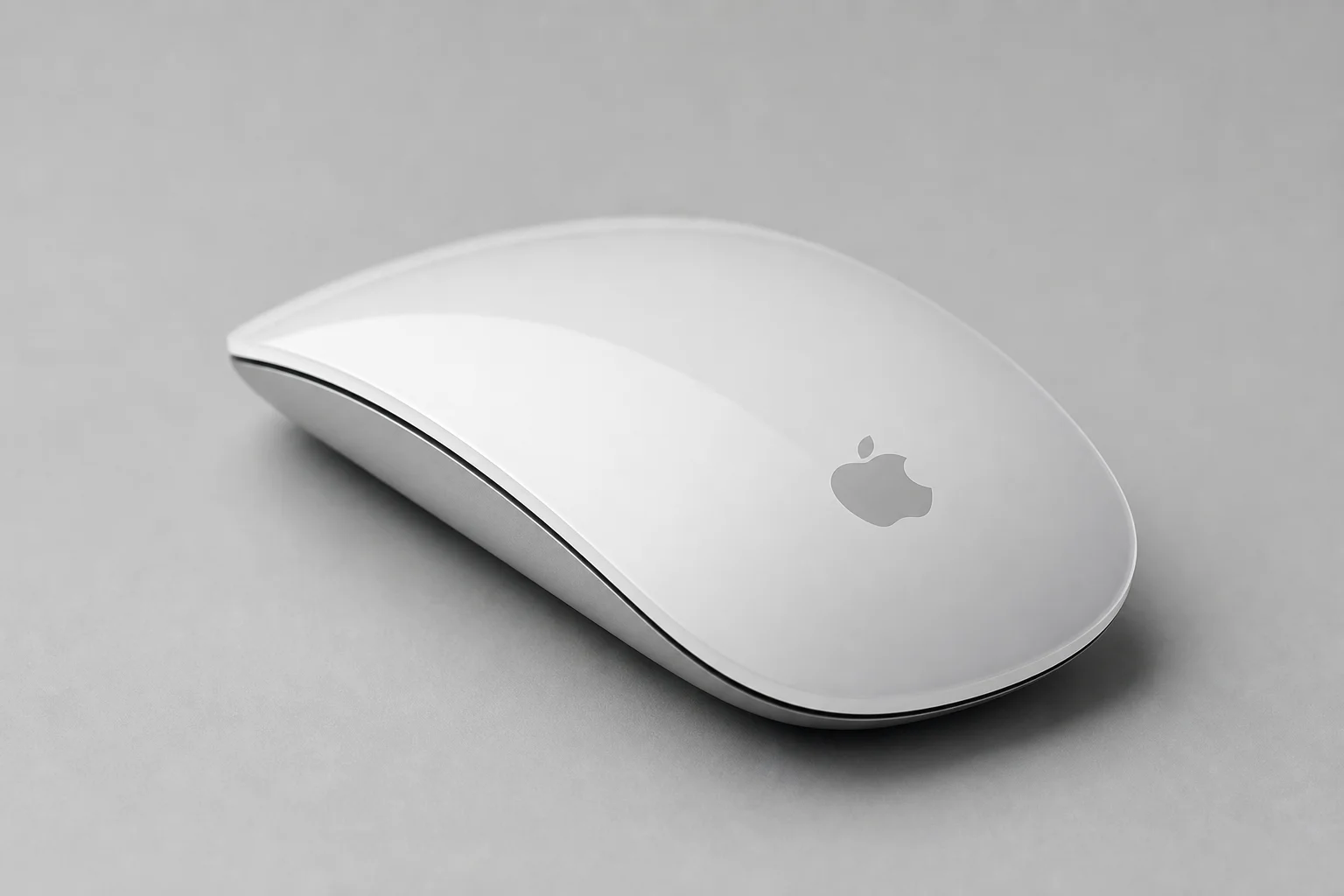
The Magic Mouse currently retails for USD 79, with a black variant at USD 99. Its defining feature is the trackpad surface built into the top of the mouse, which enables gestures and precise navigation that feel natural on macOS. In applications like Figma and Final Cut Pro, the ability to use a single finger to pan and zoom is genuinely useful for daily work.
The trackpad surface also supports customizable gestures through tools like BetterTouchTool. Two-finger taps can open links in new tabs, two-finger double-taps trigger Mission Control, and two-finger swipes move between full-screen apps. For users who spend significant time in creative software, these shortcuts become second nature.

The grip and overall feel work for some users without causing wrist or hand strain, despite its unconventional shape. The main legitimate criticism is the charging design: the mouse cannot be used while charging, and the battery must be topped up via a Lightning cable connected to the bottom. However, a two-minute charge yields eight to nine hours of usage, which mitigates the inconvenience for many.
Trackpad Alternative: Apple Magic Trackpad
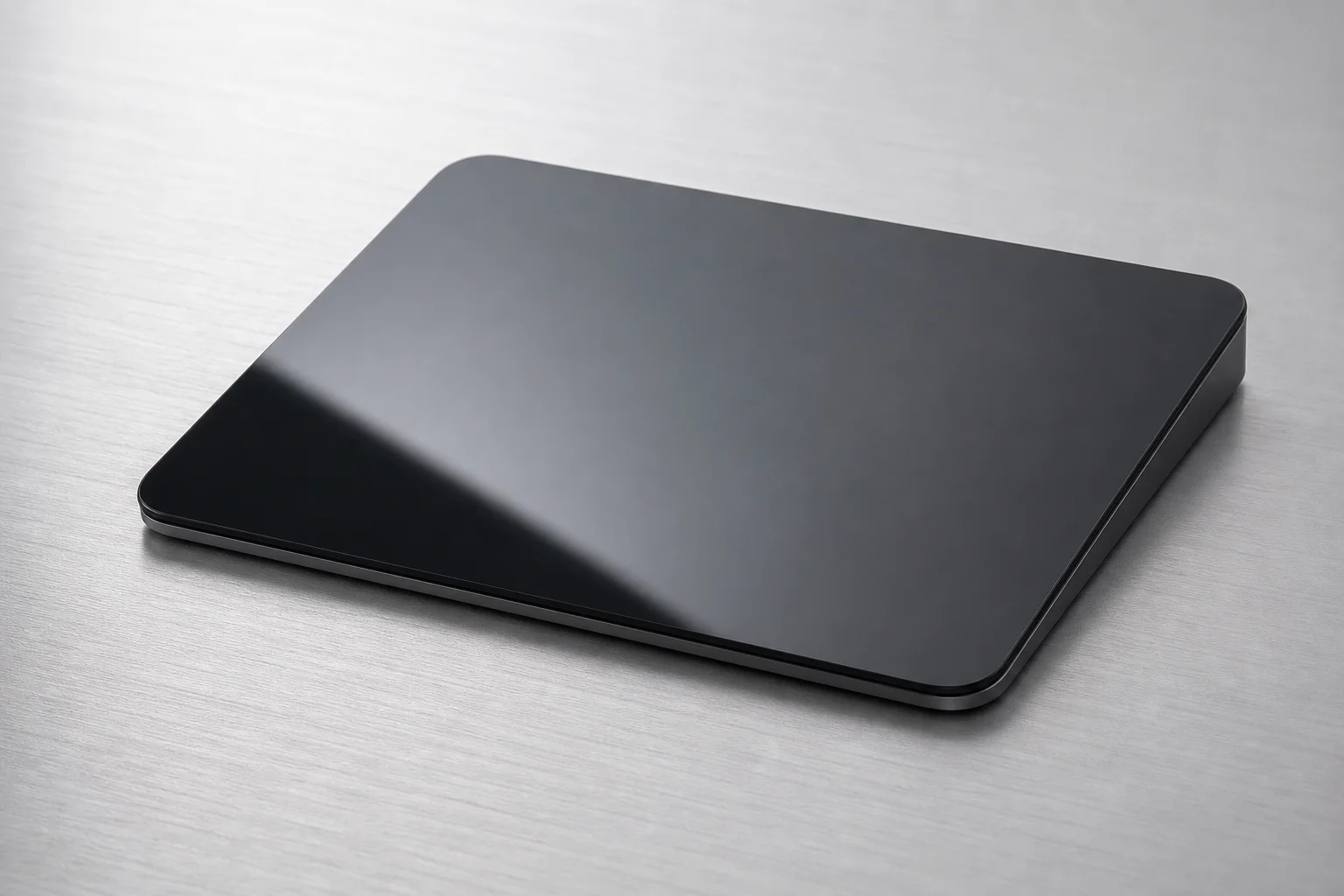
The Magic Trackpad is ideal for users who prefer the trackpad experience of a MacBook on a desktop. It costs more than the Magic Mouse but offers a premium build quality and the ability to charge while in use. Battery life extends to approximately one month per charge.
The trackpad is a slim piece of glass and aluminium that feels expensive and looks refined. It is available in silver and black finishes. For users who do not prioritize a traditional mouse and are comfortable with trackpad navigation, this is Apple’s only external trackpad option, and it executes the concept well.
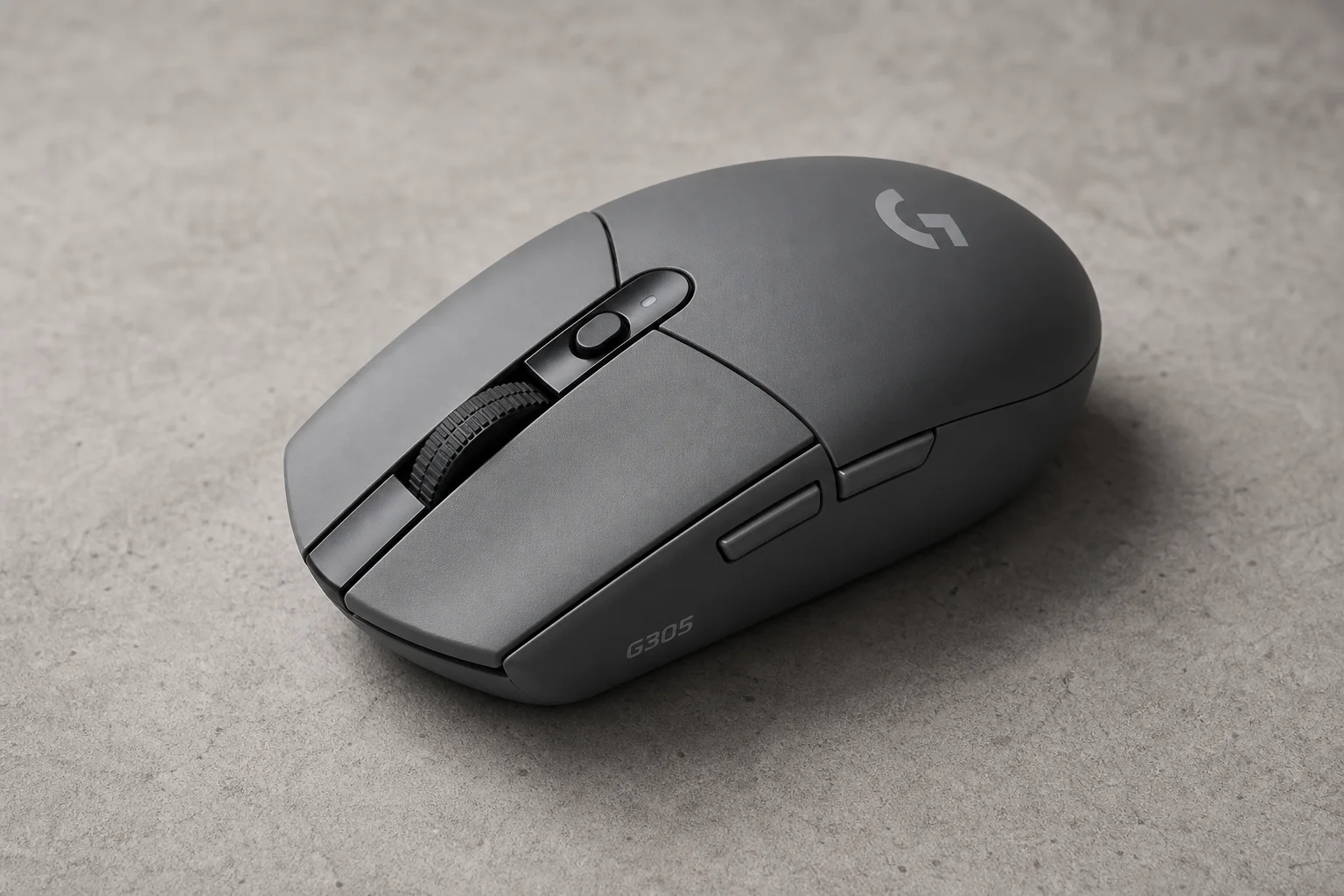
Budget Option: Logitech G305
The Logitech G305 is the most affordable choice on this list at approximately USD 40. Although marketed as a gaming mouse, its understated design means it blends in on any desk. It uses a USB dongle rather than Bluetooth, which provides faster input response and is beneficial for gaming or precision work.
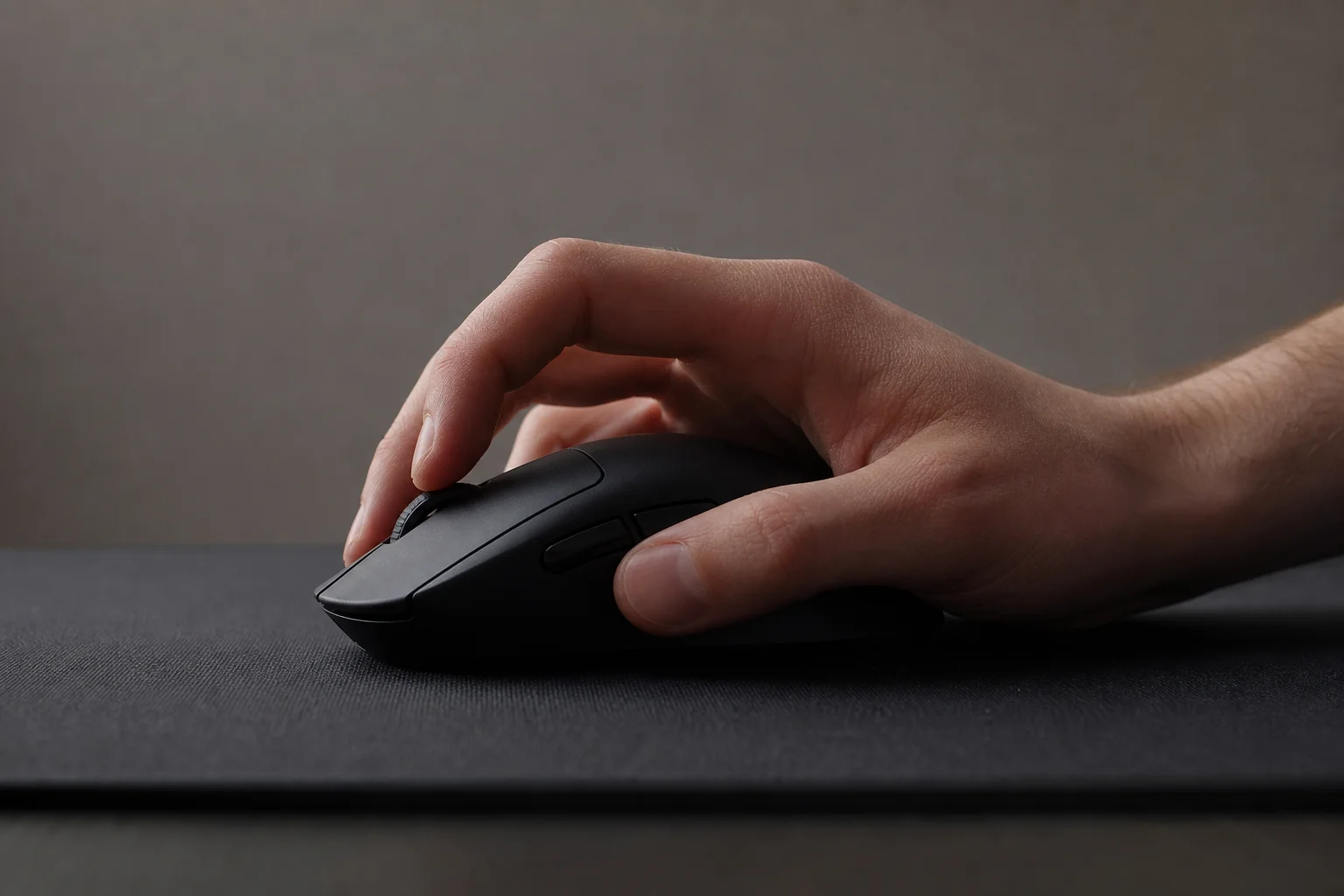
The shape is ergonomic and works well in both palm and claw grips. Medium-sized hands can cup it comfortably, though many users prefer the claw grip. The button layout includes standard left and right clicks, a scroll wheel, and a customizable button below the scroll wheel that adjusts sensitivity by default. Two side buttons near the thumb rest can be remapped to any function.
The battery life is exceptional: Logitech rates it at 250 hours, which translates to months of use before a battery change is needed. The top cover slides off to reveal the battery compartment and a slot for storing the USB dongle when not in use.
Comfort-Focused: Logitech Lift
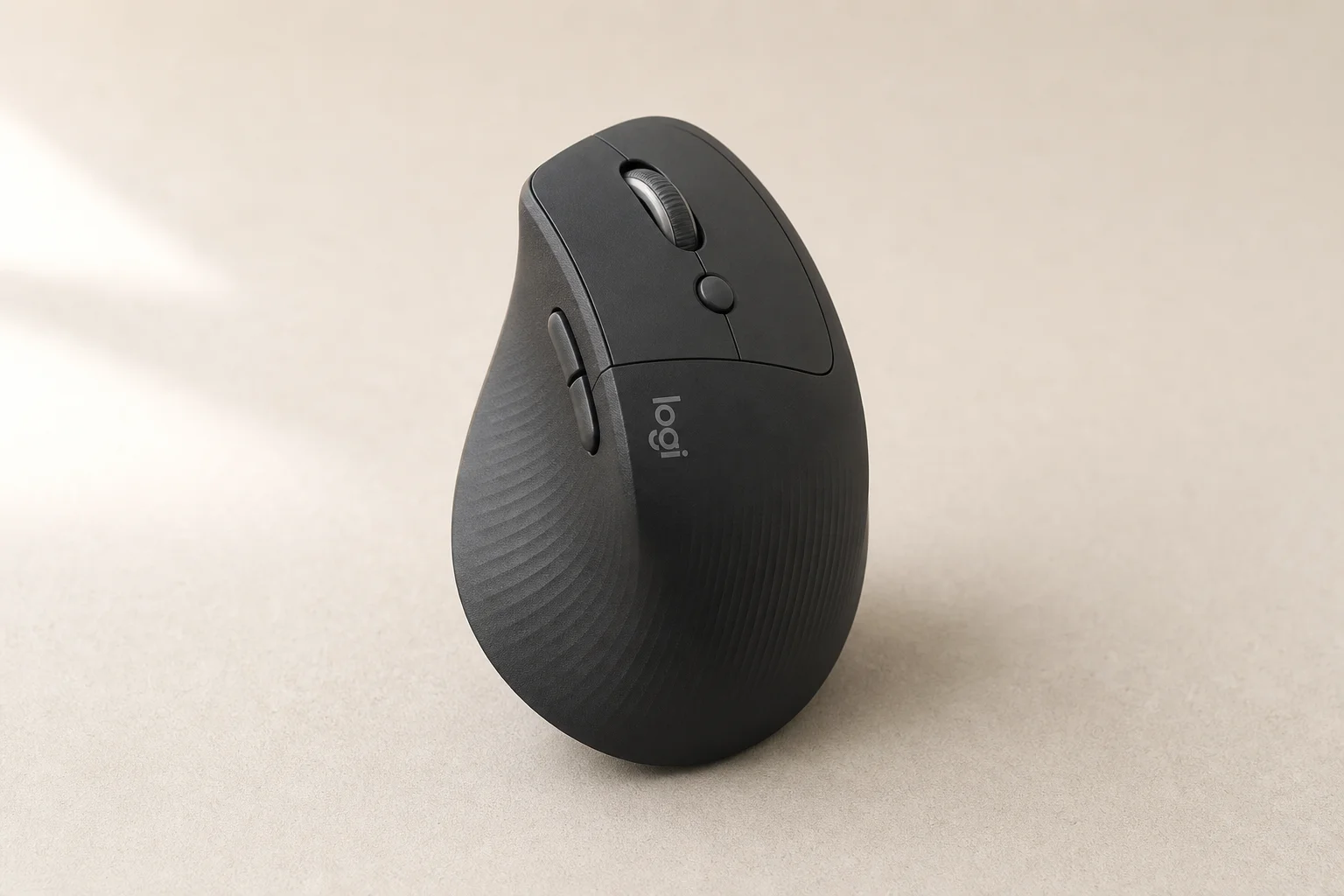
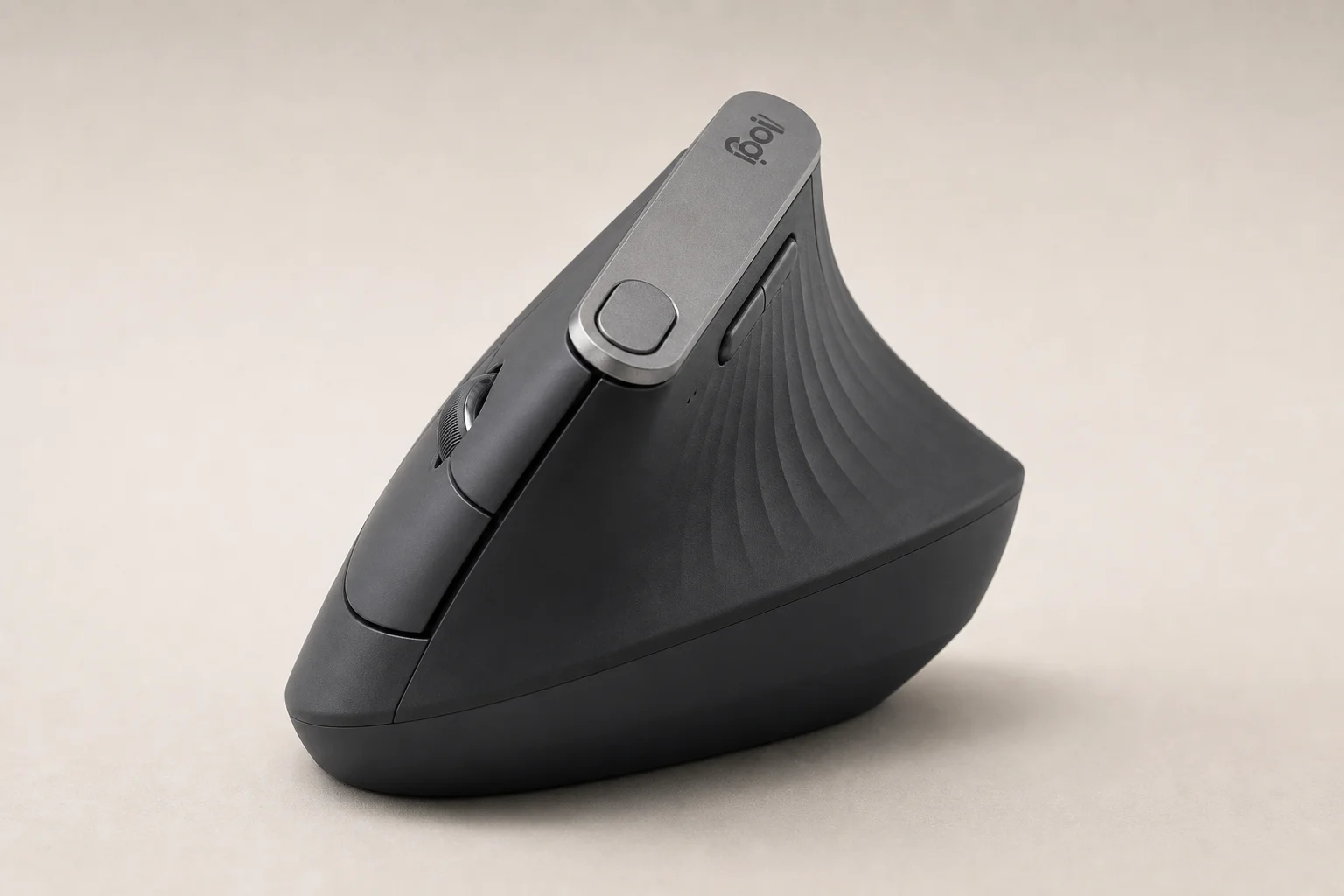
The Logitech Lift is priced at approximately USD 70 and stands out for its distinctive near-vertical orientation. The mouse is angled at 57 degrees, which rotates the hand and wrist into a more natural position compared to traditional flat mice. This design is specifically targeted at users experiencing discomfort with standard mouse shapes.
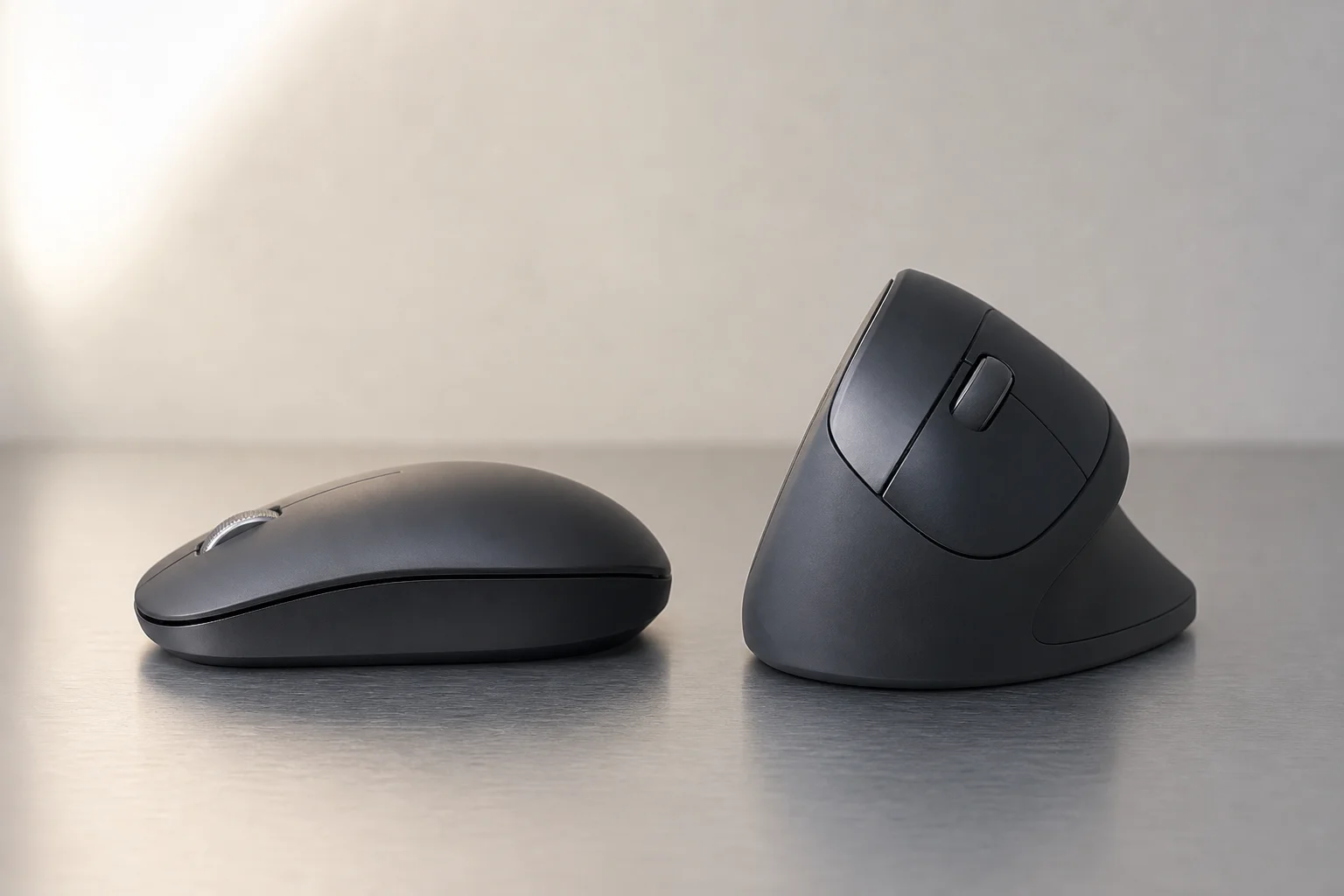
The button layout mirrors the G305: left and right clicks, a scroll wheel, customizable buttons on the side, and two additional buttons where the thumb rests. A magnetic cover on the bottom provides access to the battery compartment and USB dongle slot. Logitech claims up to two years of battery life with a standard AA battery, thanks to Bluetooth Low Energy connectivity. This battery longevity is remarkable and eliminates the need for frequent replacements.
The Lift is designed for small to medium-sized hands and is available in multiple colors. For users experiencing hand or wrist strain with traditional mice, this ergonomic alternative is highly recommended.
Premium Productivity: Logitech MX Master 3
The Logitech MX Master 3 costs USD 99 and is widely regarded as the ultimate productivity mouse. It prioritizes functionality over aesthetics, with an abundance of customizable buttons and features designed for power users.
The top surface includes standard left and right clicks, a scroll wheel, and a customizable button. A unique horizontal scroll wheel sits on the side for lateral scrolling in spreadsheets and wide documents. Below that are two additional buttons, and a large clickable thumb button provides further control. All buttons can be remapped via Logitech’s software.
The scroll wheel itself can be flicked like a smartphone list, maintaining momentum as it scrolls. This is particularly useful for navigating long documents quickly. The mouse charges via USB-C, with a full charge lasting approximately 70 days. A one-minute quick charge provides three hours of usage.
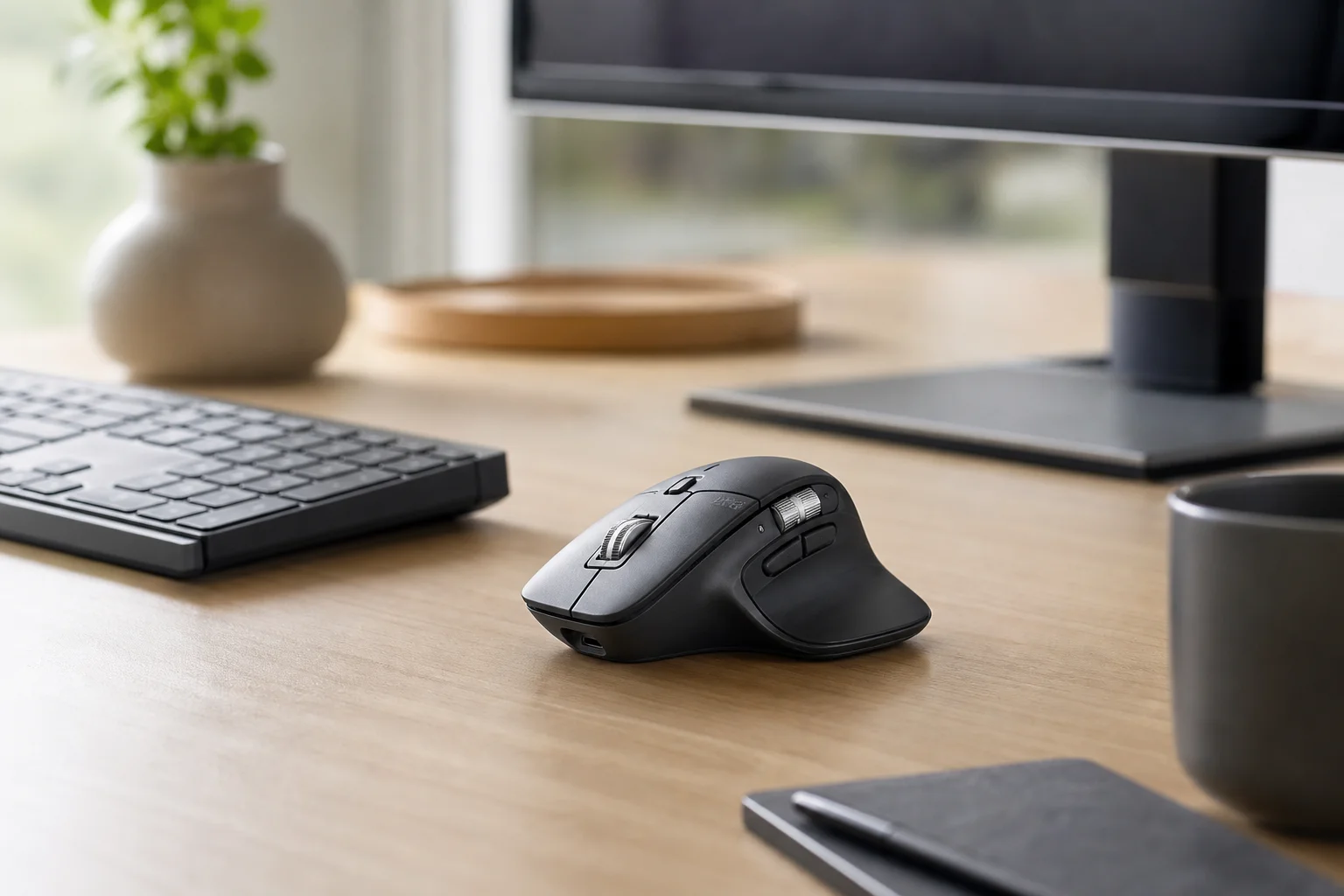
Connectivity options include Bluetooth or a USB dongle, and a button on the bottom allows saving three different device profiles. The high middle section of the mouse forces the hand into a curved position, providing strong support behind the knuckles. For users working in Figma, Final Cut Pro, Visual Studio Code, or productivity applications like Excel and Word, this mouse handles any task through its extensive customization options.
Conclusion
Choosing the right mouse depends on your specific needs and hand comfort. The Magic Mouse remains excellent for macOS gesture workflows, while the Magic Trackpad suits those who prefer trackpad navigation. Budget-conscious users should consider the Logitech G305, while those experiencing hand strain will benefit from the Logitech Lift’s ergonomic design. For maximum productivity features and customization, the Logitech MX Master 3 is the most capable option. Each alternative addresses different priorities, making it possible to find a mouse that fits your working style and comfort requirements.
Further reading
Related Reviews
Mac Accessories
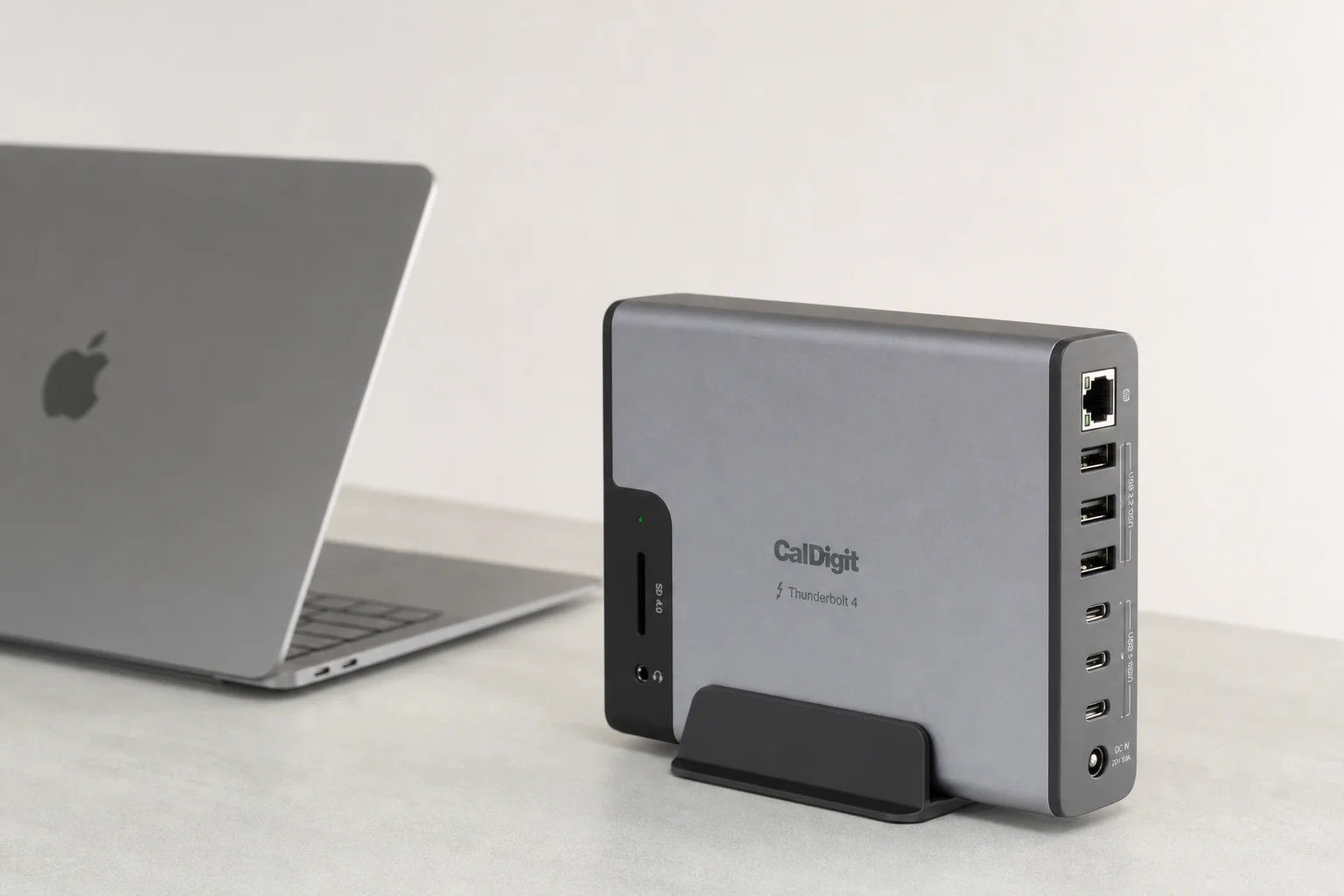
Plugable TBT4-UDZ Thunderbolt 4 Docking Station: Unlocking M4 MacBook Air Productivity
The Plugable TBT4-UDZ transforms the M4 MacBook Air into a dual-monitor workstation with native Thunderbolt 4 support, extensive connectivity, and no driver installation required.
Automotive Accessories
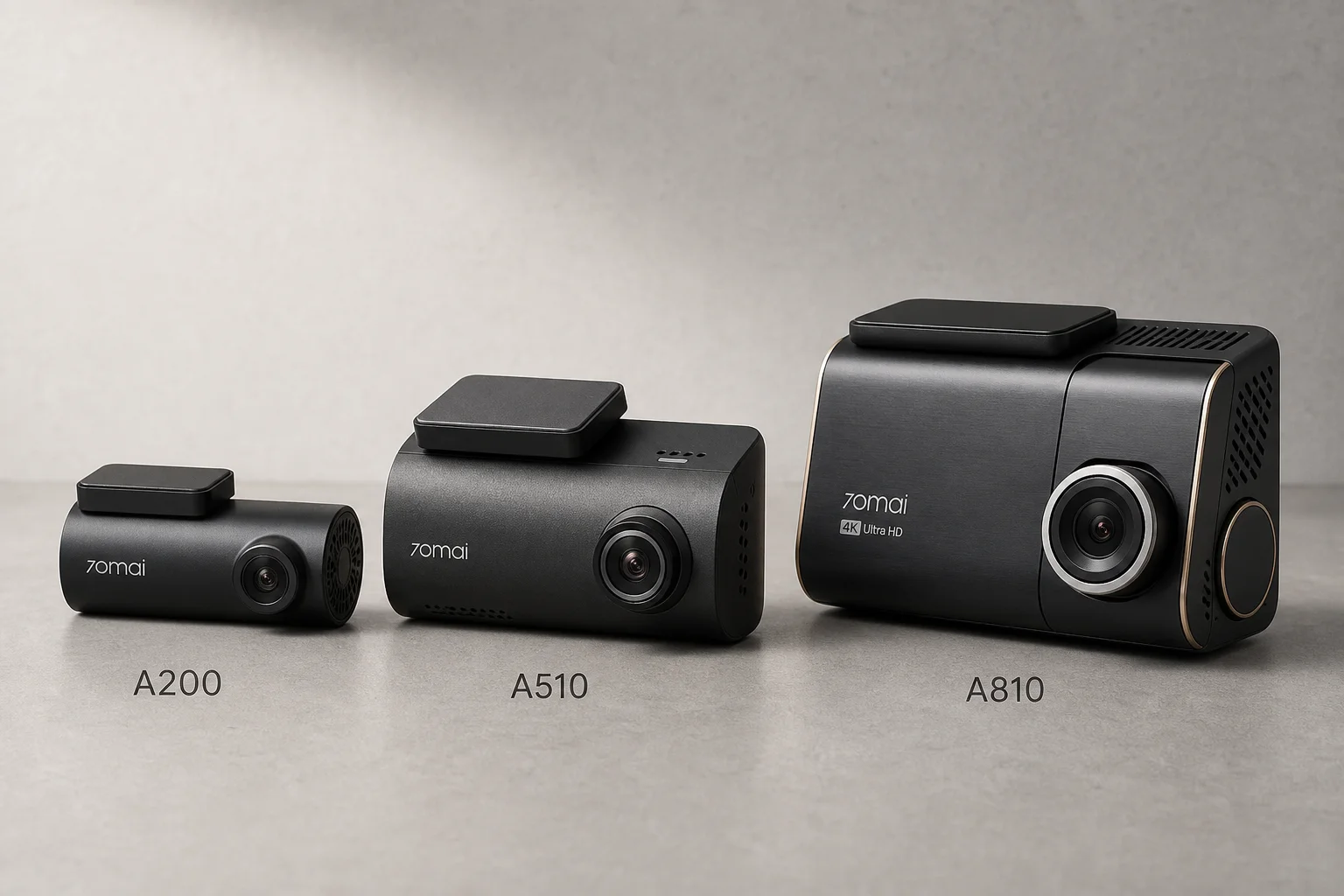
70mai Dash Cam Comparison: A200 vs A510 vs A810
Three dash cameras from 70mai across different price points reveal how resolution and sensor quality impact real-world footage clarity, especially for number plate visibility and low-light performance.
Cycling Power Meters
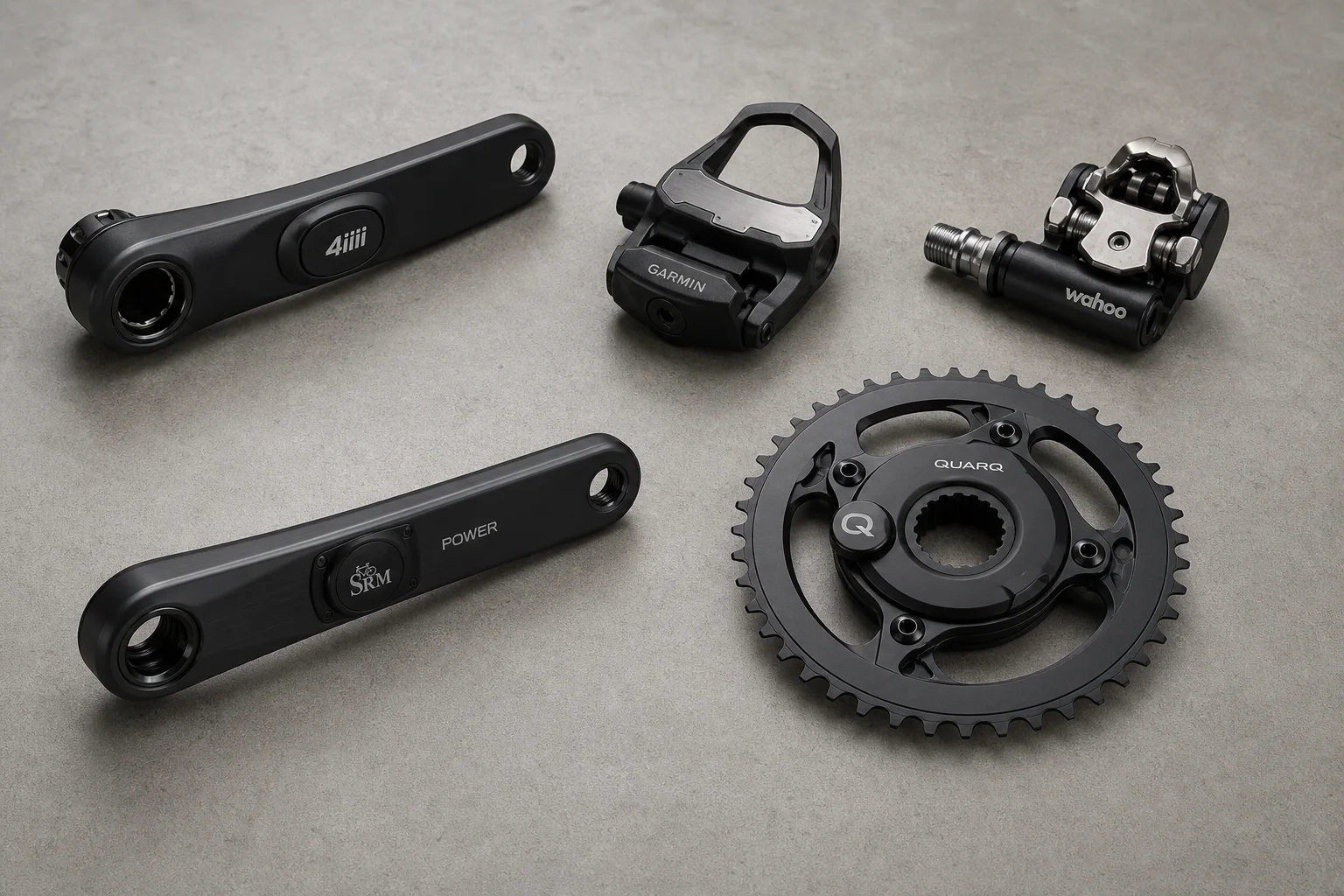
Five Affordable Power Meters for Road and Off-Road Cycling
Five practical power meter options under $500 that deliver reliable power measurement without breaking the budget.