Tech Accessories
Logitech MX Master 4 Review: Wireless Mouse for Professionals
The Logitech MX Master 4 combines upgraded materials, haptic feedback, and customizable gesture controls to streamline workflows across Windows, Mac, and creative applications.
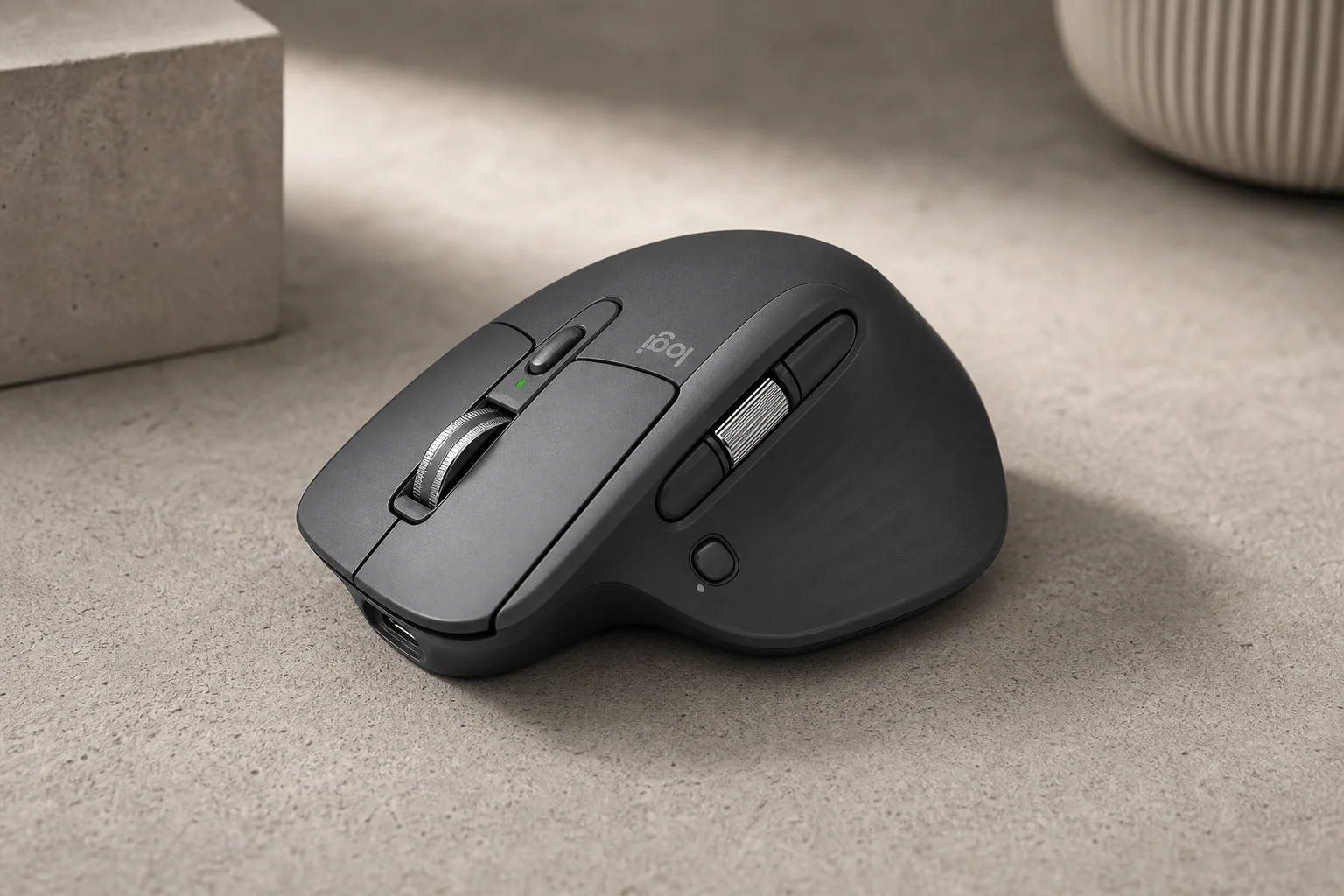
Introduction
The Logitech MX Master 4 represents a significant upgrade in the MX Master line, introducing new gesture controls, improved materials, and haptic feedback. This wireless mouse is designed for professionals across multiple disciplines—from office workers managing email and spreadsheets to designers, video editors, and programmers seeking to streamline complex workflows.
The core appeal lies in its customizable button mapping and gesture system, which allows users to assign frequently used actions to the mouse itself, reducing reliance on keyboard shortcuts and menu navigation.
Design and Materials
Logitech upgraded the materials on the MX Master 4 compared to its predecessor. The new finish is more resistant to fingerprints and wear, maintaining a cleaner appearance over extended use. The mouse is available in graphite grey and pearl white, both featuring the improved material treatment.
The button actuation has also been refined. Despite the mouse’s larger size, the buttons require less pressure to activate, making it accessible to users who previously found the MX Master uncomfortable. The click feedback remains tactile and audible, yet quiet enough not to disturb others in shared workspaces.
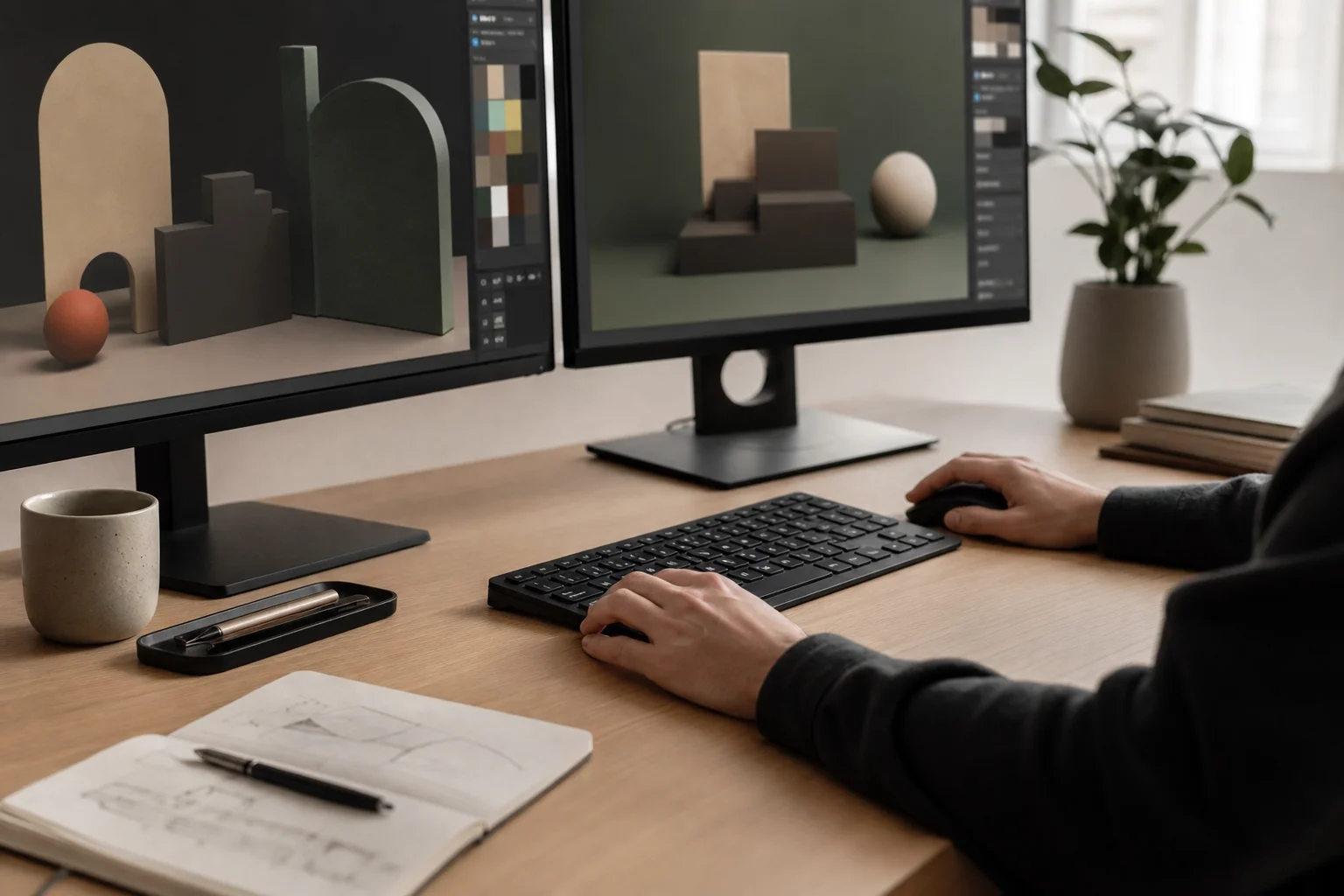
A new Gesture button sits prominently on the side, complementing the existing thumb wheel and side buttons. This addition enables a new layer of customization through gesture-based commands.
System-Level Customization
To unlock the MX Master 4’s full potential, users must install Logitech Options+, the companion software available for Windows and Mac. This application provides access to global settings and per-application profiles.
The Gesture button supports directional inputs: pushing left, right, up, or down triggers different actions. At the system level, common gestures include window snapping (left/right halves of the screen), desktop switching, and media controls (volume, play/pause, next/previous track).
The thumb wheel can be configured to perform custom actions. For spreadsheet work, users often map it to horizontal scrolling, allowing quick navigation across wide datasets. Combined with keyboard shortcuts like Ctrl+Home and Ctrl+End, the thumb wheel becomes a powerful navigation tool.
The Action Ring feature, accessed through the thumb button, displays a radial menu of up to eight customizable actions. Users can assign frequently accessed applications, files, folders, or keyboard shortcuts to each position. The ring supports nested folders, effectively creating unlimited action possibilities.

For email workflows, users can create a Contact folder within the Action Ring, storing email addresses as paste-able text snippets. Similarly, email signatures and frequently used phrases can be stored for instant insertion. Advanced users can set up Multi-Actions that execute sequences of commands—for example, copying an email, opening an AI assistant, pasting the email, and prompting the AI to draft a response, all triggered by a single gesture.
Creative Applications: Photoshop
In Photoshop, the MX Master 4’s haptic feedback becomes particularly useful. When moving elements on the canvas, the mouse vibrates as objects snap to guides or alignment points, providing tactile confirmation beyond visual feedback. This accelerates the precision workflow, allowing designers to judge alignment more quickly.
The Action Ring in Photoshop can store adjustment layers, filters, and frequently used effects. Rather than navigating the menu bar or scrolling through panels, designers can access Brightness/Contrast, Curves, or Hue/Saturation adjustments directly from the mouse. Commonly used functions like Convert to Smart Object can be dragged into the Action Ring for one-click access.
The Gesture button can be mapped to arrow key commands, enabling pixel-level adjustments without removing the hand from the mouse. Saving files can also be assigned to a gesture, reducing the risk of losing unsaved work.
Design Tools: Illustrator
In Illustrator, the Action Ring accelerates tool selection and object manipulation. The Pen Tool, Selection Tool, and other frequently used tools can be stored in the ring, eliminating the need to press keyboard shortcuts or click the toolbox.
For text and object scaling, the thumb wheel becomes a precision control. Rather than selecting the Scale Tool and manually adjusting, users can hover over an object, access the Action Ring, select Scale Objects, and then scroll the wheel to resize instantly. This approach is significantly faster than traditional scaling workflows.
Layer management is another area where the Action Ring shines. Functions like “Bring to Front,” “Send to Back,” and “Move Forward/Backward” can be mapped to the Gesture button’s directional inputs, allowing rapid layer reordering without menu navigation.
Video Editing: Premiere Pro
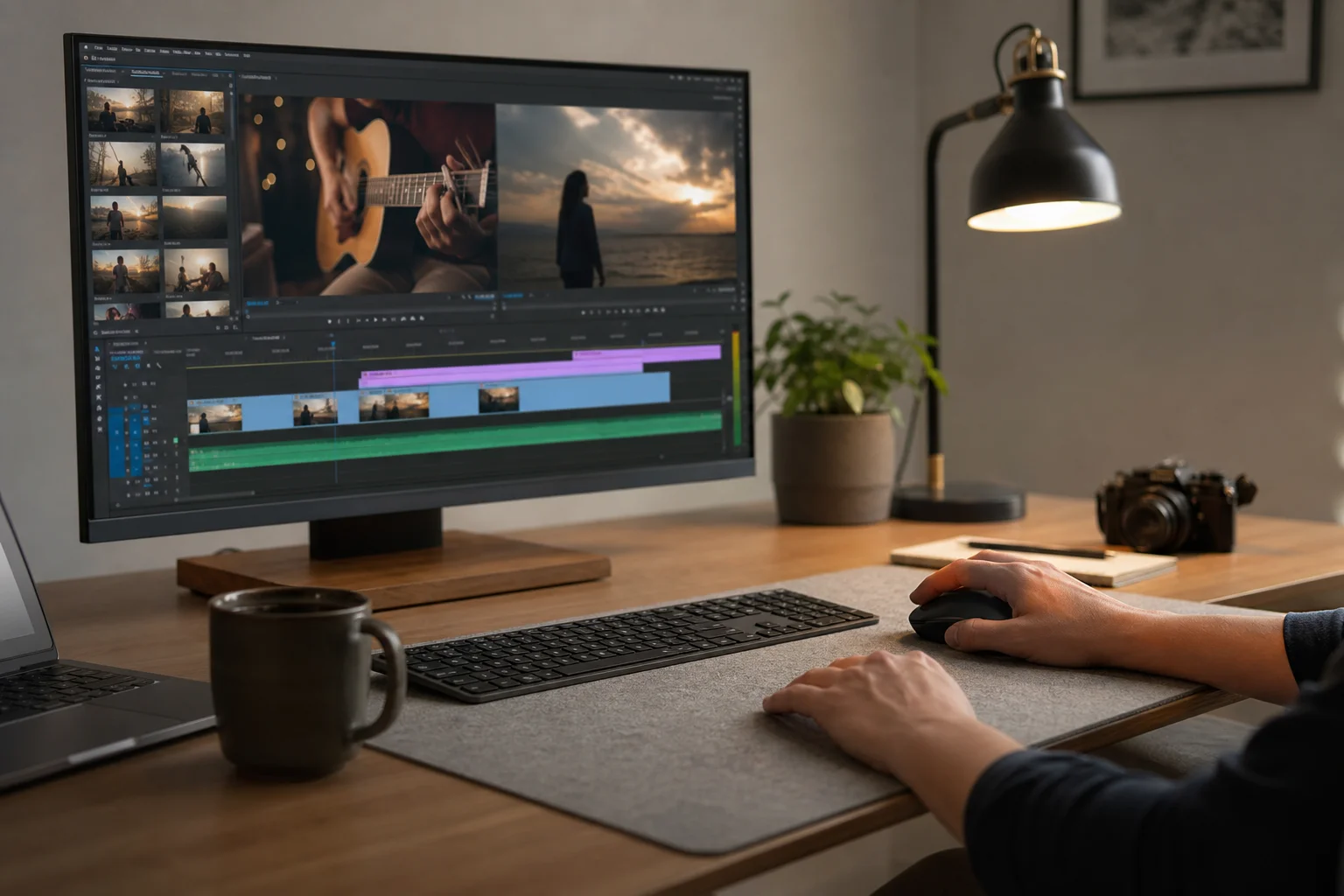
Video editors benefit from the MX Master 4’s rapid scrolling and customizable buttons. The mouse supports both stepped scrolling (for precise frame-by-frame navigation) and momentum scrolling (for fast timeline scrubbing). The transition between modes is automatic based on scroll speed.
Common editing functions can be mapped to the mouse buttons. The Cut command, Ripple Delete, and Nest functions—typically accessed through right-click menus—can be assigned to dedicated buttons or the Action Ring. This eliminates repetitive menu diving during editing sessions.
The Action Ring can store speed presets. Rather than manually entering 110% playback speed through keyboard shortcuts, users can set up a Multi-Action that opens the speed panel, pastes the desired value, and confirms the change. Similarly, Reverse, Slow Motion, and other speed adjustments can be stored as separate presets.
The Gesture button can navigate the timeline. Pushing up jumps to the beginning; pushing down jumps to the end. This replaces the need to press Home or End keys, keeping both hands on the mouse and keyboard simultaneously.
Brightness, Contrast, and Saturation adjustments for individual clips can be mapped to the thumb wheel, allowing real-time parameter tweaking without opening adjustment panels.
Build Quality and Repairability
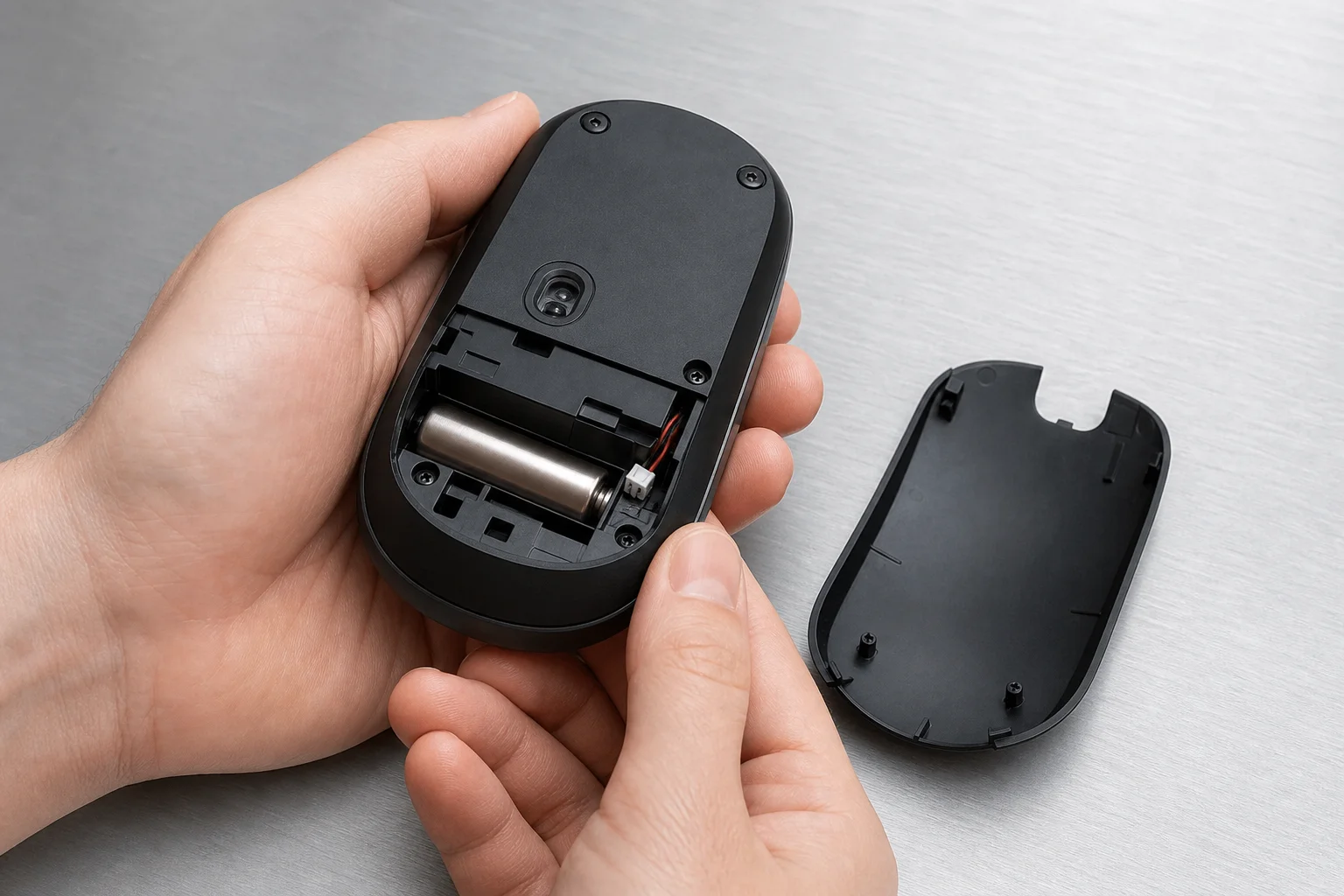
The MX Master 4 uses a rechargeable battery accessible via a small panel on the underside. Removing a few screws reveals the battery, making replacement straightforward. This design choice significantly extends the mouse’s lifespan, as users can replace the battery rather than discarding the entire device.
The overall construction quality is high, with materials chosen for durability and tactile feedback. The mouse is designed to remain functional for five to ten years with proper care.
Logitech Marketplace and Presets
Logitech’s Marketplace offers pre-configured profiles for popular applications including Zoom, Microsoft Teams, and Adobe Creative Suite (Photoshop, Illustrator, Lightroom Classic, and Premiere Pro). These profiles include optimized button mappings and Action Ring configurations, allowing users to start with professional setups rather than building from scratch.
Users can also download custom icons for Action Ring buttons, personalizing the interface. Community-created presets are available for download, enabling users to adopt workflows designed by other professionals.
Advanced Features
Smart Actions enable conditional automation. Users can set up “If This, Then That” logic—for example, if a specific button is pressed, then automatically execute a sequence of commands. This feature is particularly useful for repetitive multi-step workflows.
Conclusion
The Logitech MX Master 4 is a comprehensive productivity tool that justifies its premium price through genuine workflow acceleration. Whether used for email management, spreadsheet work, graphic design, or video editing, the mouse adapts to the user’s needs through extensive customization.
The upgraded materials, improved button feel, and new gesture controls represent meaningful improvements over previous generations. For professionals who spend extended hours at the computer, the investment in a high-quality mouse with customizable controls often pays dividends in reduced fatigue and increased efficiency.
Current promotions include a one-month Adobe Creative Cloud subscription with purchase, adding additional value to the package.
Product link
View more details for Logitech MX Master 4
This product is mentioned in the review. Check the specifications, options, and compatibility before buying.
View more details for Logitech MX Master 4Further reading
Related Reviews
Tech Accessories
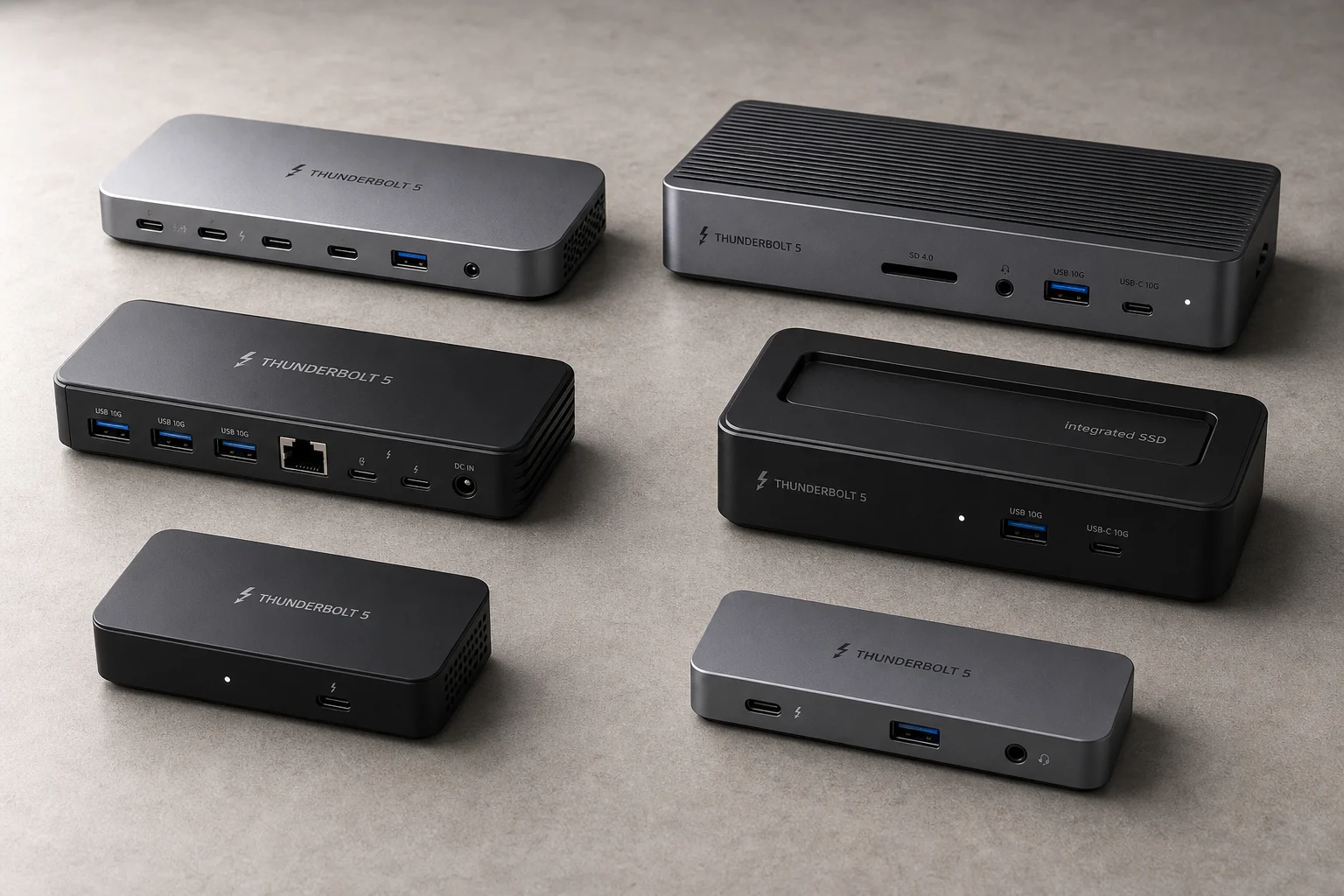
Best Thunderbolt 5 Docks 2026: Six Options Tested for Desktop Connectivity
A practical guide to six Thunderbolt 5 docking stations, covering their strengths, trade-offs, and which setup they suit best.
Tech Accessories
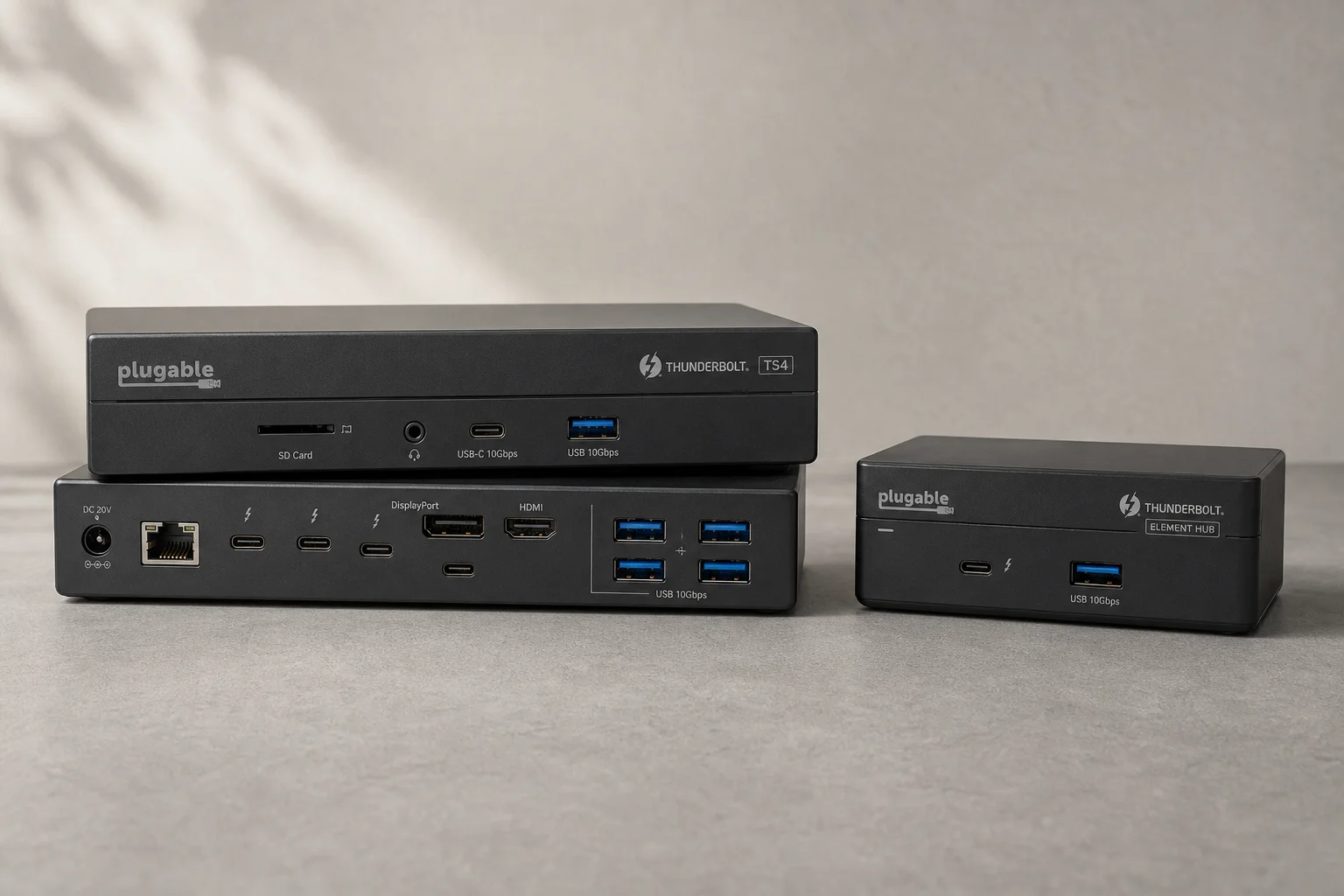
CalDigit Thunderbolt Docks: TS4 vs Element Hub
Two Thunderbolt docking solutions with different port counts and use cases. The TS4 offers 18 ports and 2.5 Gbps ethernet; the Element Hub provides a compact 8-port alternative.
Tech Accessories
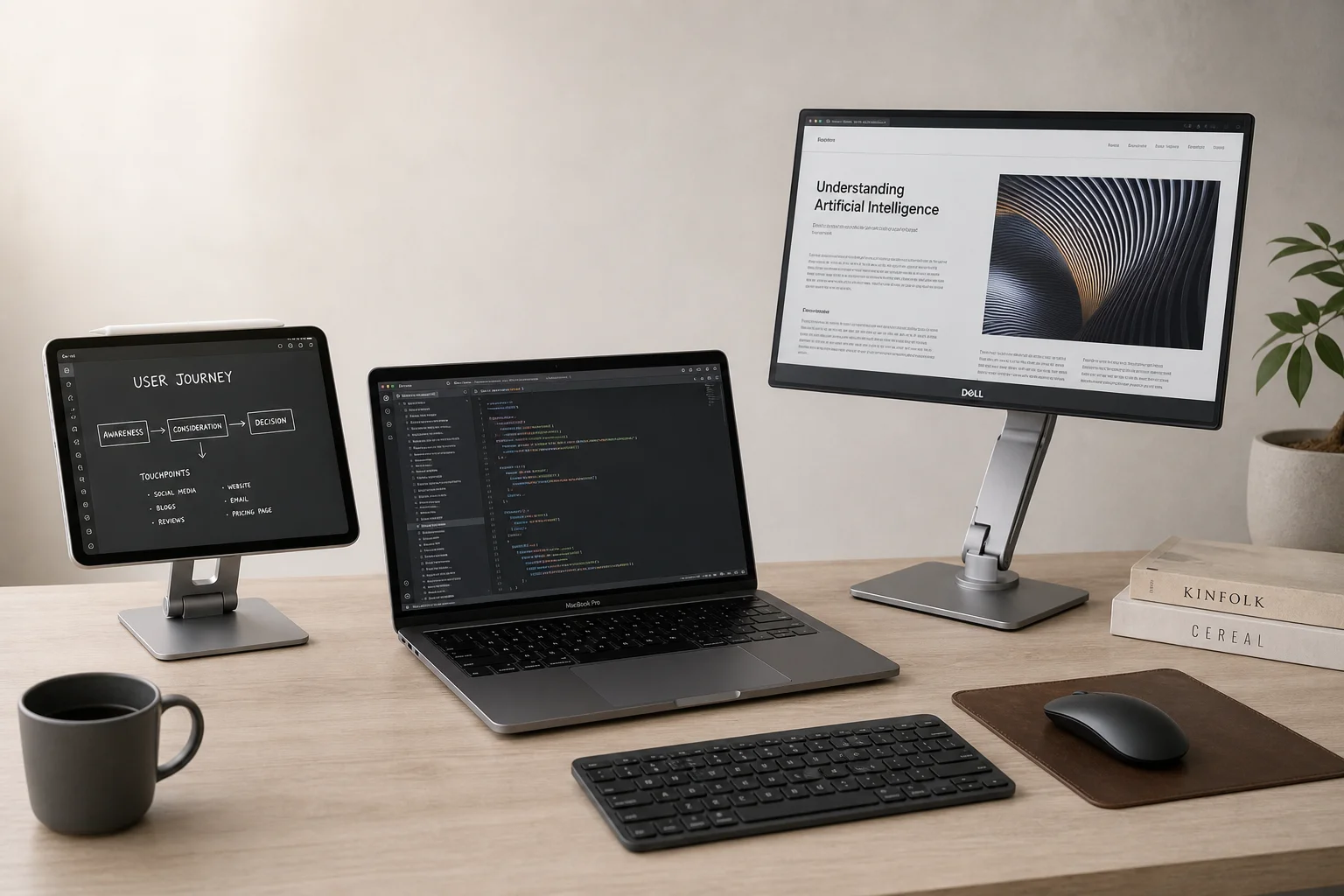
iPad with Sidecar vs Portable Display: Which Makes a Better Second Monitor for Mac
A practical comparison of using an iPad via Sidecar versus a dedicated portable display like the Dell C1422H as a secondary monitor for Mac laptops and desktops.