Mac Storage
Mac External Storage Guide: SSDs vs Hard Drives and How to Choose
A practical guide to understanding Mac external storage options, port compatibility, and whether to buy an SSD, hard drive, or build your own setup.
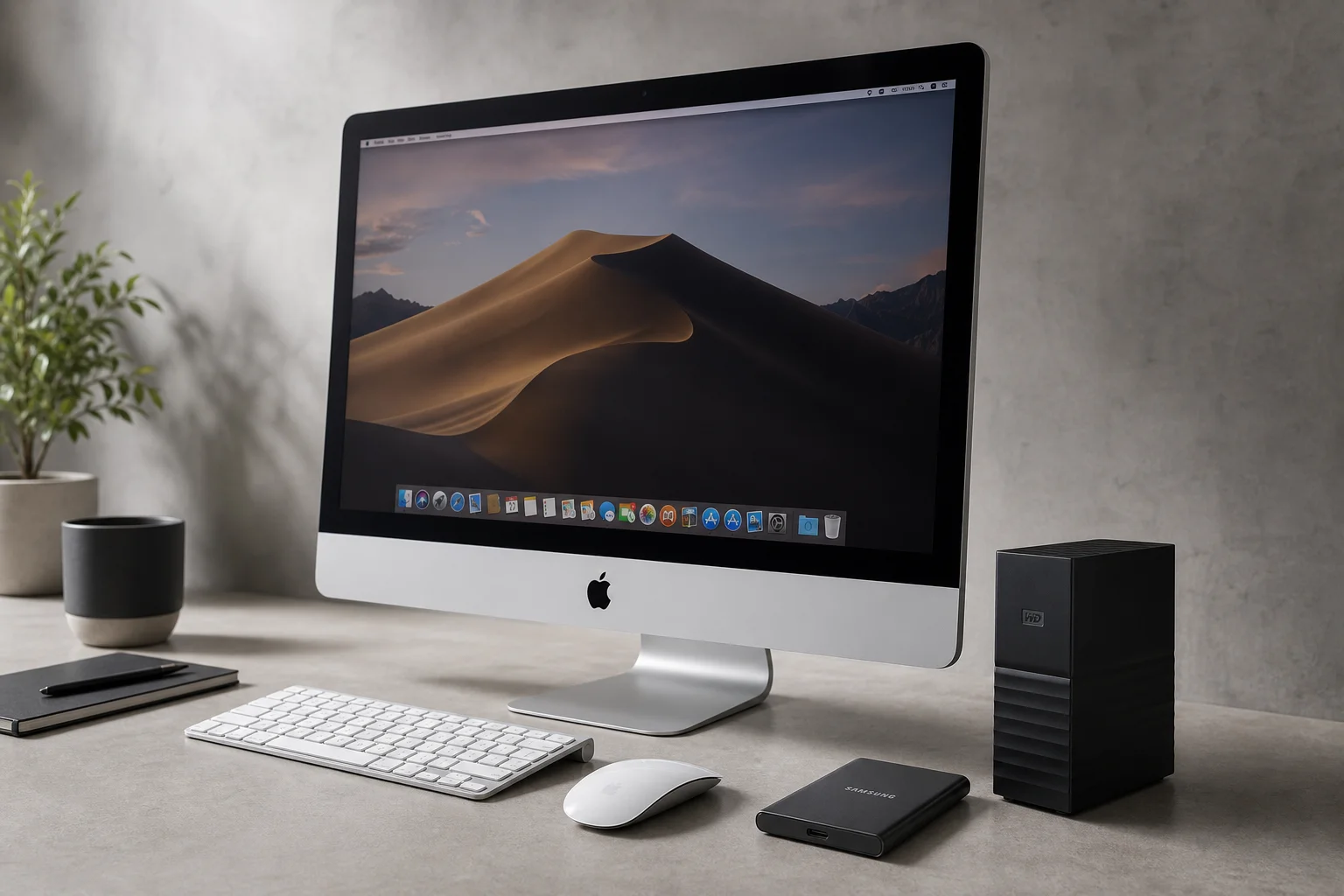
Introduction
Apple makes it easy to configure a new Mac with more storage, but the cost can be staggering. A 2 TB upgrade on an M4 Mac Mini costs £800 alone, more than the base computer itself. The real problem is that Mac storage cannot be upgraded after purchase, so buyers face a difficult choice: overpay for storage they may never use, or buy a base model and risk running out of space later.
The good news is that external storage offers a practical alternative. Unlike CPU cores, GPU cores, or unified memory, storage is one area where you can improve your Mac after purchase. However, the external storage market is confusing, with many options, price variations, and technical specifications that are easy to misunderstand.
Understanding Mac Ports and Compatibility
Before choosing an external drive, you need to know what ports your Mac actually has. This matters far more than most people realize, especially if you plan to keep a drive plugged in permanently.
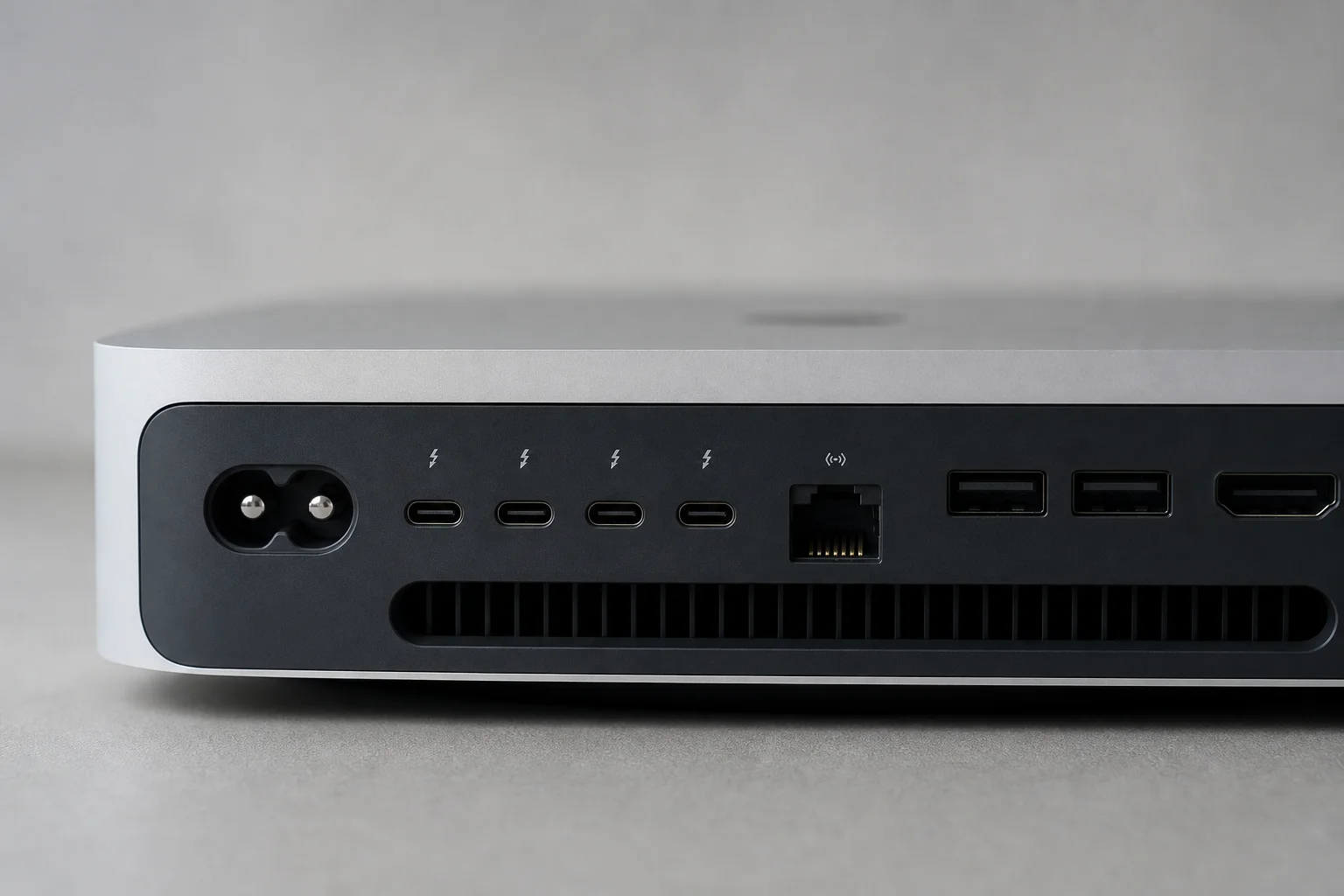
Different Macs have vastly different port configurations. An M2 Ultra Mac Studio has six Thunderbolt 4 ports, offering plenty of high-speed connections. By contrast, an M4 MacBook Air has only two Thunderbolt 4 ports total. Plug in an external drive and you have just one port left for everything else. This limitation often forces you to buy a dock, adding cost and complexity.
Even within a single product line, port specs can be misleading. The base M4 iMac advertises four Thunderbolt ports, but only two are actually Thunderbolt 4. The other two are standard USB-C, which are significantly slower. You need the higher-end model to get the full four Thunderbolt 4 ports.
To check your Mac’s exact port configuration, click the Apple logo, select “About This Mac,” then “More Info,” and scroll to “System Report.” Look for the Thunderbolt or USB 4 section near the bottom of the list. This tells you exactly what your machine supports.
SSDs vs Hard Drives: Key Differences
When shopping for external storage, you will encounter two main types: hard disk drives (HDDs) and solid-state drives (SSDs). The price difference can be dramatic. A 4 TB HDD might cost £75, while a 4 TB SSD costs £500 or more. Understanding why requires knowing how each technology works.
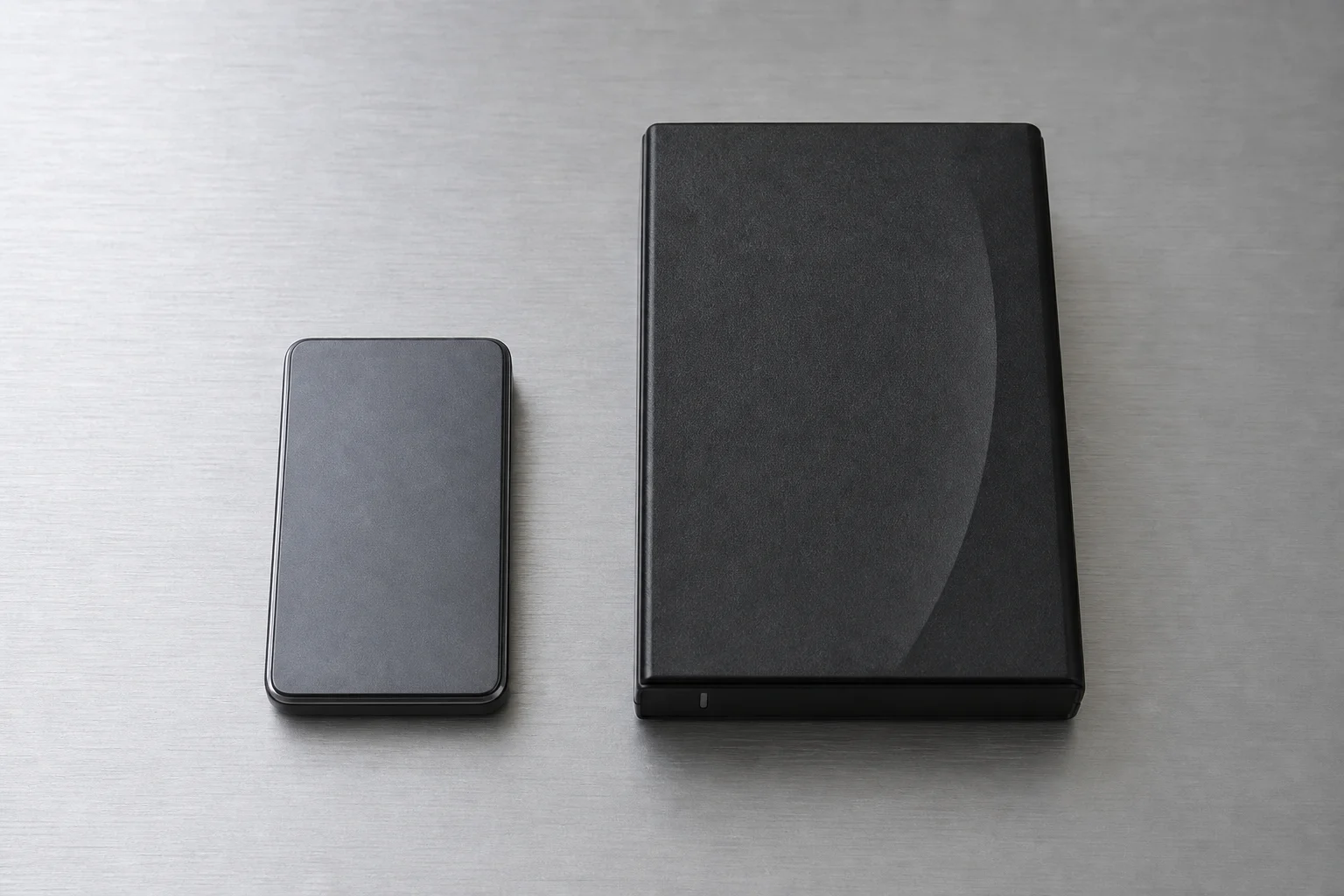
Hard drives are mechanical devices that date back to the 1950s. They use spinning platters and a magnetic arm to read and write data. This mechanical design creates two major problems. First, they are slow compared to modern SSDs. Second, moving parts are fragile. Drop a hard drive off a desk or let it bounce around in a backpack, and it may fail completely, potentially destroying your data.
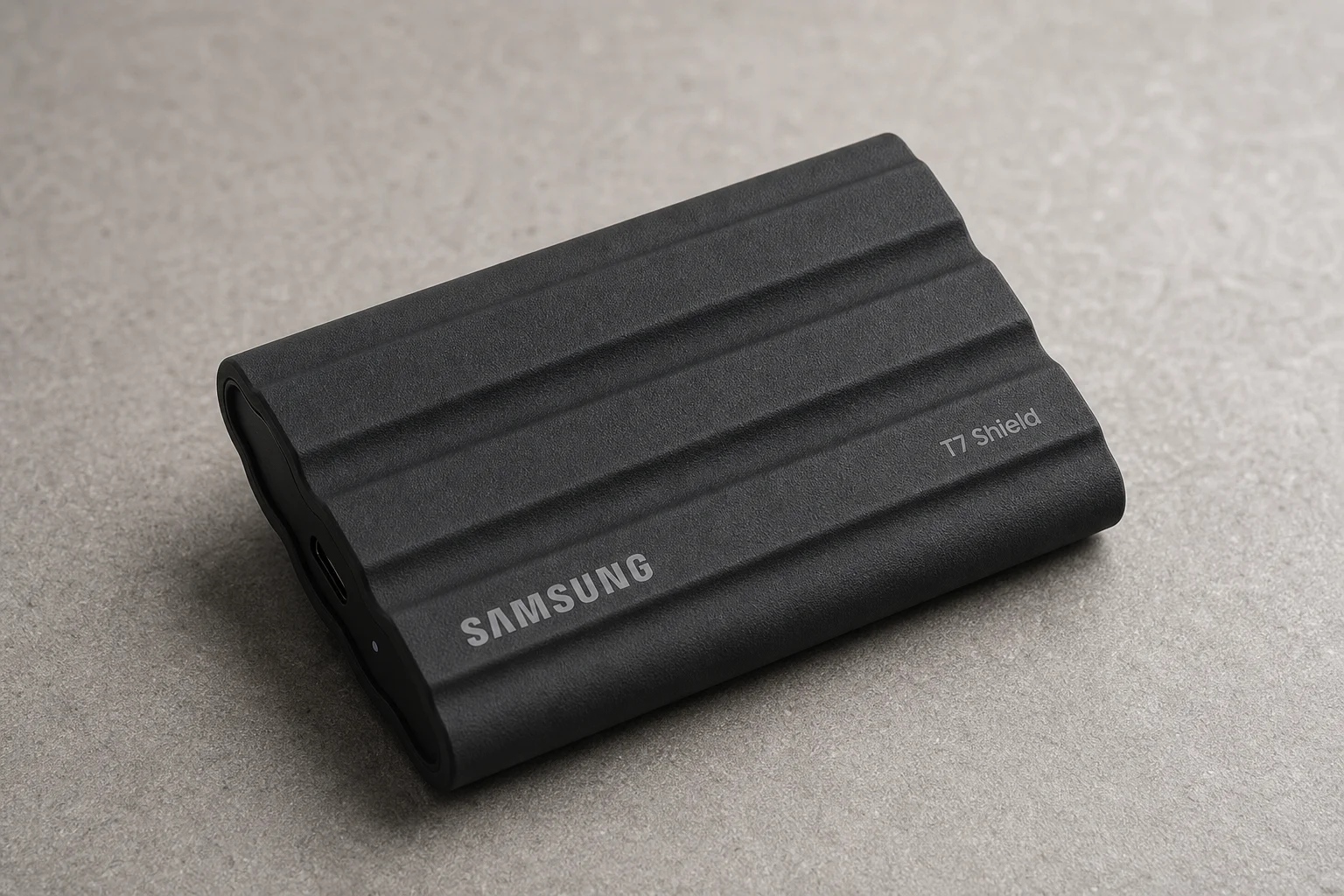
SSDs contain no moving parts. They are compact, self-contained units with the same type of storage found inside your Mac, packaged in an external enclosure. Read and write speeds are much faster, and they are far more durable. Drop an SSD from a reasonable height and it will likely still work fine.
For most users, SSDs are the better choice for portable external storage. However, SSDs are not always the right answer for every situation.
When Hard Drives Still Make Sense
Hard drives remain useful for specific use cases, particularly archiving and backup. If you work with large files that you do not need regular access to, a hard drive offers exceptional value.
A network attached storage (NAS) device is a good example. A NAS connects to your home network and lets you access files wirelessly from any device in your house. A typical setup might use five 4 TB hard drives, providing 20 TB of total capacity. Because of redundancy, where data is stored across multiple drives so that one or two failures do not result in data loss, only half that capacity is usable. Even so, a 10 TB usable NAS costs around £1,500, far less than the same capacity in SSDs.
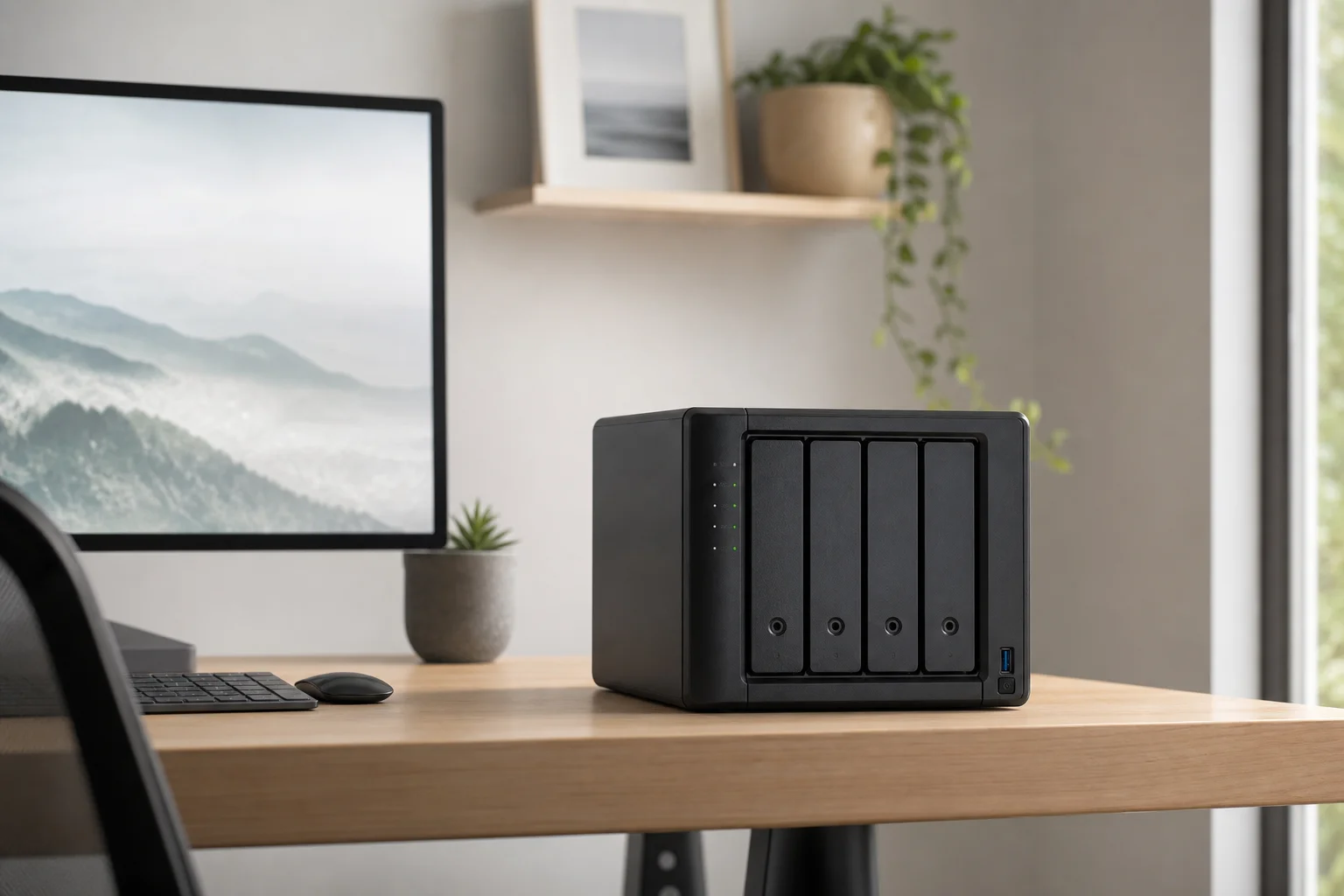
Hard drives work well for archiving because you do not need the speed of SSDs. Once you finish a project, you move it to the NAS and leave it there. You know you can retrieve it if needed, but you are not constantly reading from and writing to it.
For everyday users without a NAS, a simple DIY backup system using multiple hard drives is still cost-effective. For less than half the price of a single SSD, you could buy two or three 4 TB hard drives and duplicate your files across them, creating your own basic archive with built-in redundancy.
Choosing the Right SSD
If you decide an SSD is right for you, the next challenge is navigating the options. Two SSDs with identical storage capacity can have vastly different prices and performance levels.
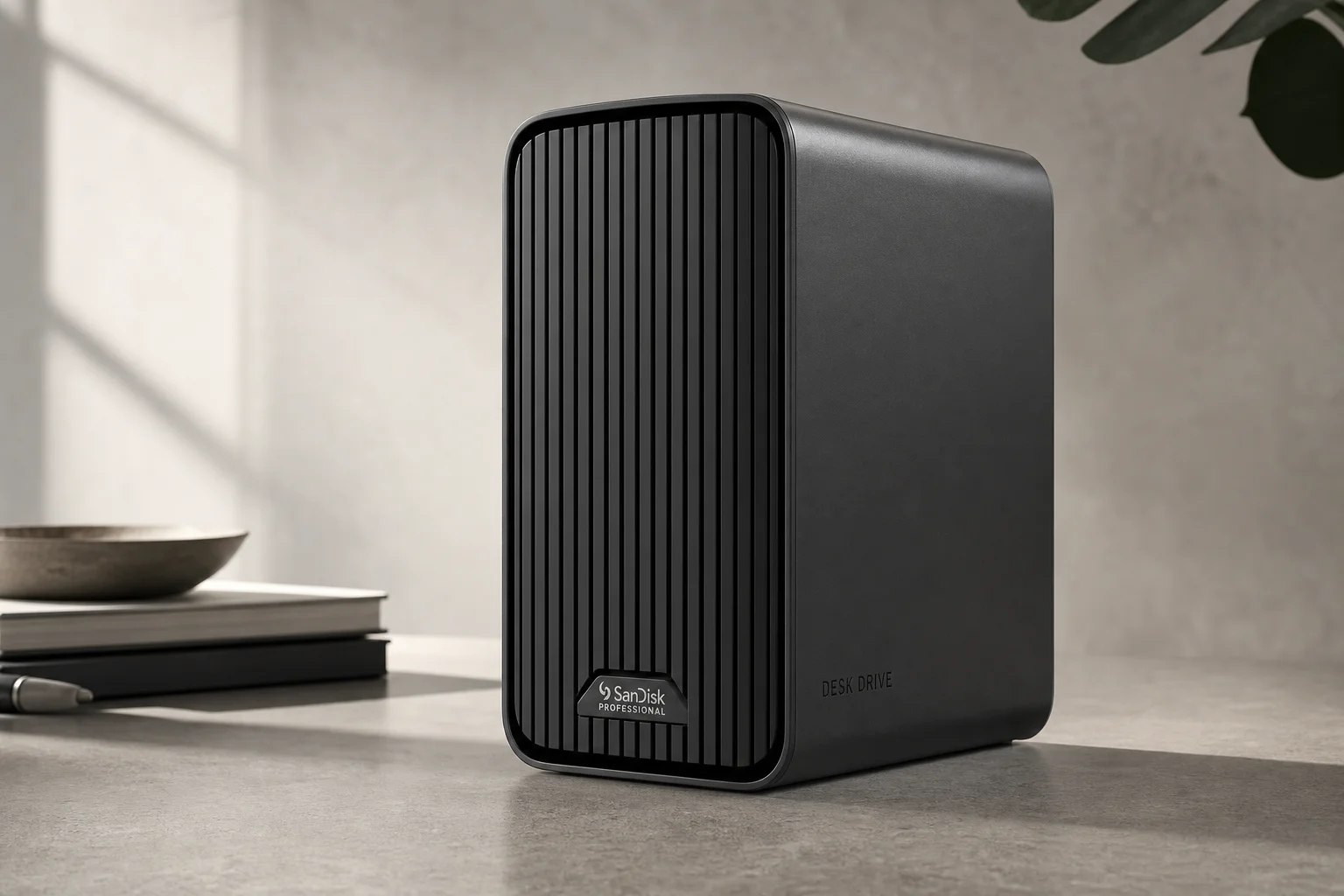
The difference comes down to read and write speeds. A 2 TB SanDisk external SSD might be listed at £120, £150, £200, or £250 depending on the model. The cheapest option offers around 800 megabytes per second, while higher-end models reach 1,500 MB/s, 2,000 MB/s, or even 3,800 MB/s with USB 4 compatibility.
However, speed is only useful if your Mac can actually support it. A high-speed USB 4 drive will not deliver its advertised speeds on a Mac with only USB 3 ports. Matching the drive’s capabilities to your Mac’s actual port configuration is essential.
The USB naming system adds another layer of confusion. USB 3.2 Gen 1 offers 5 Gbps, while USB 3.2 Gen 2 offers 10 Gbps. The difference is massive, but the box only says “USB 3.2” unless you read the fine print. Similarly, watch for the difference between Gbps (gigabits per second) and GBps (gigabytes per second). One gigabyte equals 8 gigabits, so the distinction matters significantly.
One more detail to check: the included cable. Some high-speed SSDs ship with only a standard USB-C cable, not a Thunderbolt 4 or USB 4 compatible cable. If the drive does not include the right cable, you either need to buy a different drive or purchase a compatible cable separately.
Featured External Storage Options
Building Your Own External Storage
If commercial SSDs feel too expensive, building your own setup is surprisingly practical. You can buy an SSD enclosure and an NVMe storage module, assemble them, and end up with a drive that performs as well as commercial options at a fraction of the cost.
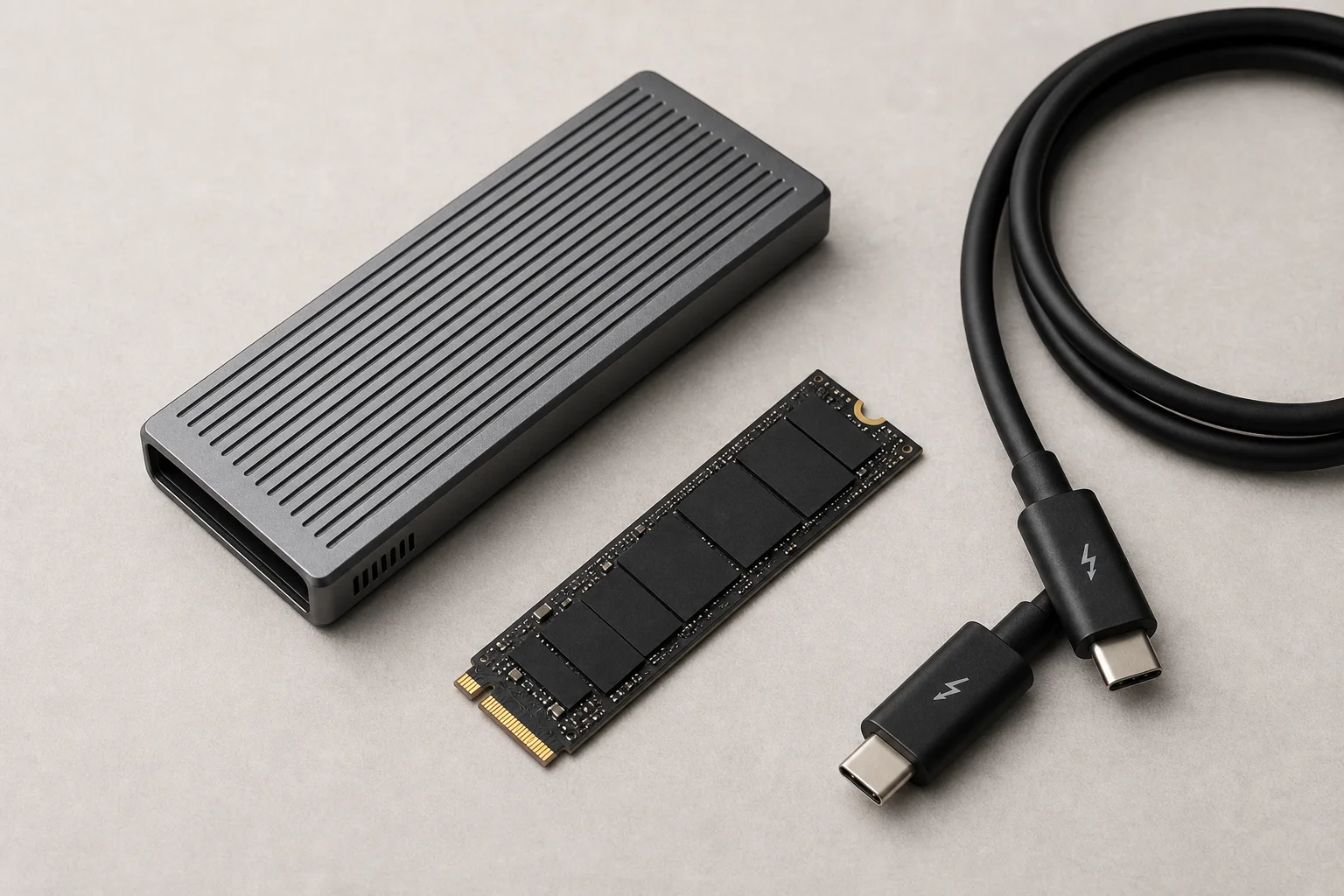
A quality SSD enclosure costs around £100. NVMe storage, the same high-speed storage used in gaming consoles and PCs, is designed to slot directly into these enclosures. A 4 TB NVMe drive with fast read and write speeds costs significantly less than a pre-built 4 TB SSD.
Once assembled and formatted on your Mac, the performance is indistinguishable from internal storage. A DIY setup that adds 4 TB of usable capacity costs just over £300, compared to £800 or more for the same capacity through Apple. You get the same speed and reliability at a fraction of the price.
Conclusion
Mac storage decisions matter because they are locked in at purchase time. However, external storage offers a practical escape route. Whether you choose a commercial SSD, build your own, or use a hard drive for archiving, you have options that cost far less than Apple’s internal upgrade prices. Take time to understand your Mac’s ports, match the drive to your actual needs, and you will make a choice you do not regret.
Further reading
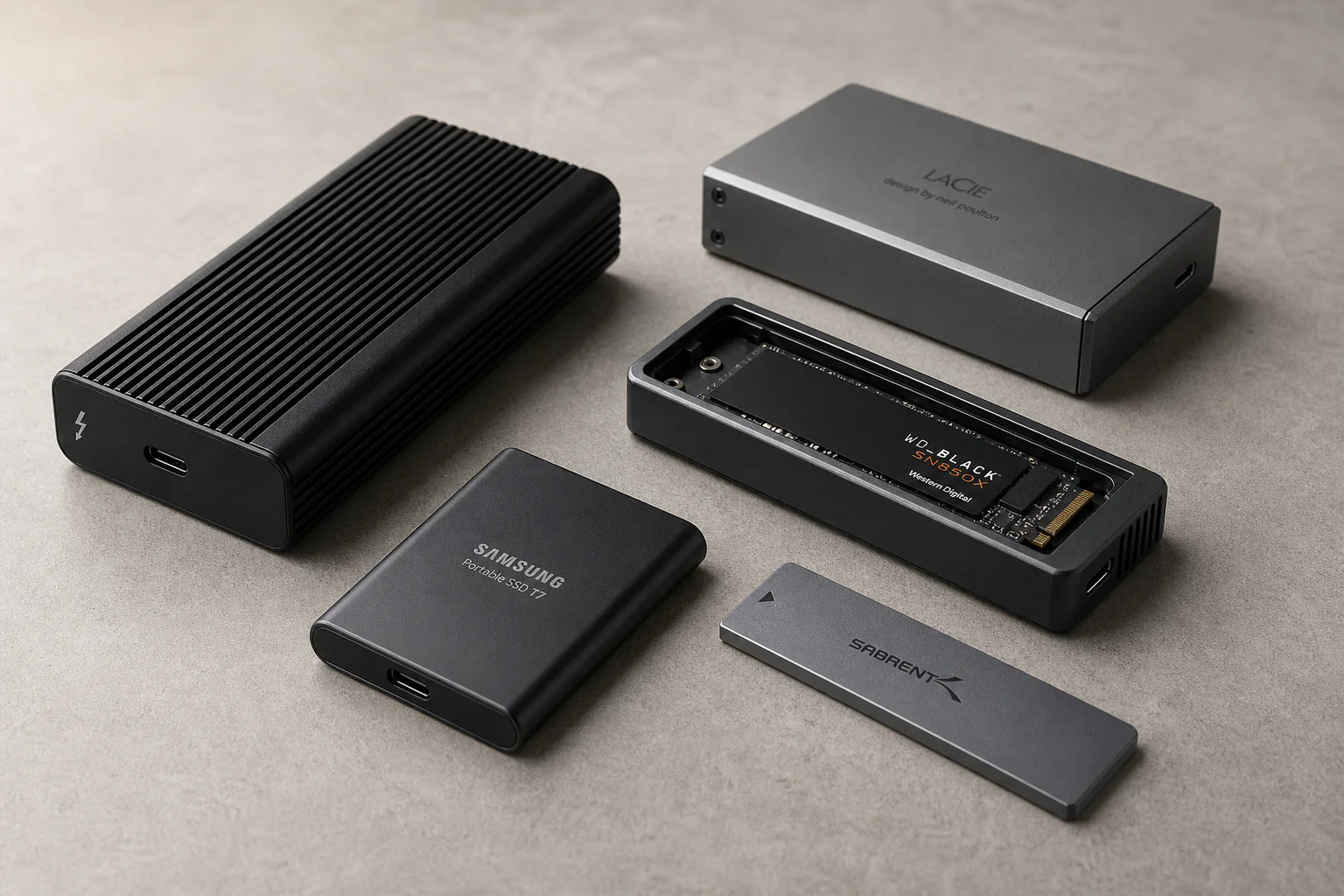
Related Reviews
Mac Storage
Best External SSDs for Mac: A Guide to Speed Classes and Real-World Performance
Understanding USB 3.0, Thunderbolt, and enclosure options to choose the right external SSD for your Mac workflow.
Automotive Accessories
70mai Dash Cam Comparison: A200 vs A510 vs A810
Three dash cameras from 70mai across different price points reveal how resolution and sensor quality impact real-world footage clarity, especially for number plate visibility and low-light performance.
Cycling Power Meters
Five Affordable Power Meters for Road and Off-Road Cycling
Five practical power meter options under $500 that deliver reliable power measurement without breaking the budget.